
Use a Python Query to Retrieve Data From Web Services
Prerequisites
-
The Python Query Report is dependent on the Python Service functionality.
- Python Service is available for use in containerized environments as well as uncontainerized Managed Cloud Enterprise (MCE) deployments.
- To enable this feature, contact Strategy Support for assistance.
-
Required Privileges:
- Use Scripts Python
- Certify Python Scripts
- Use Freeform SQL
Create Python Query Data Source
- Open the Workstation window.
- In the Navigation pane, next to Data Sources, click
 to create a new data source.
 -
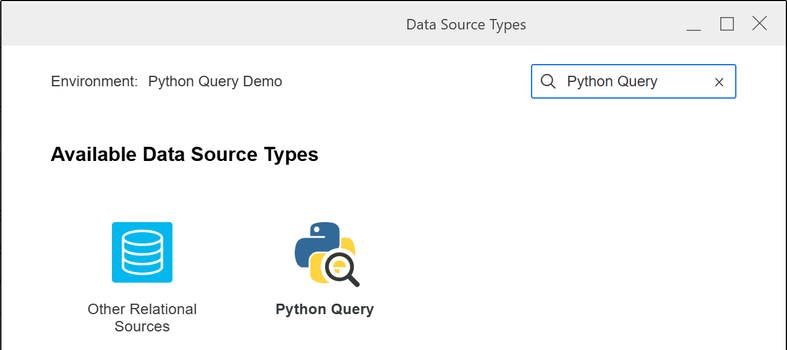
In the Data Source Types window, select Python Query.
- Next to Name, enter a title for the data source.
- Optionally, provide a Description for the data source.
-
From the Python Runtime drop-down list, select a Python Runtime.
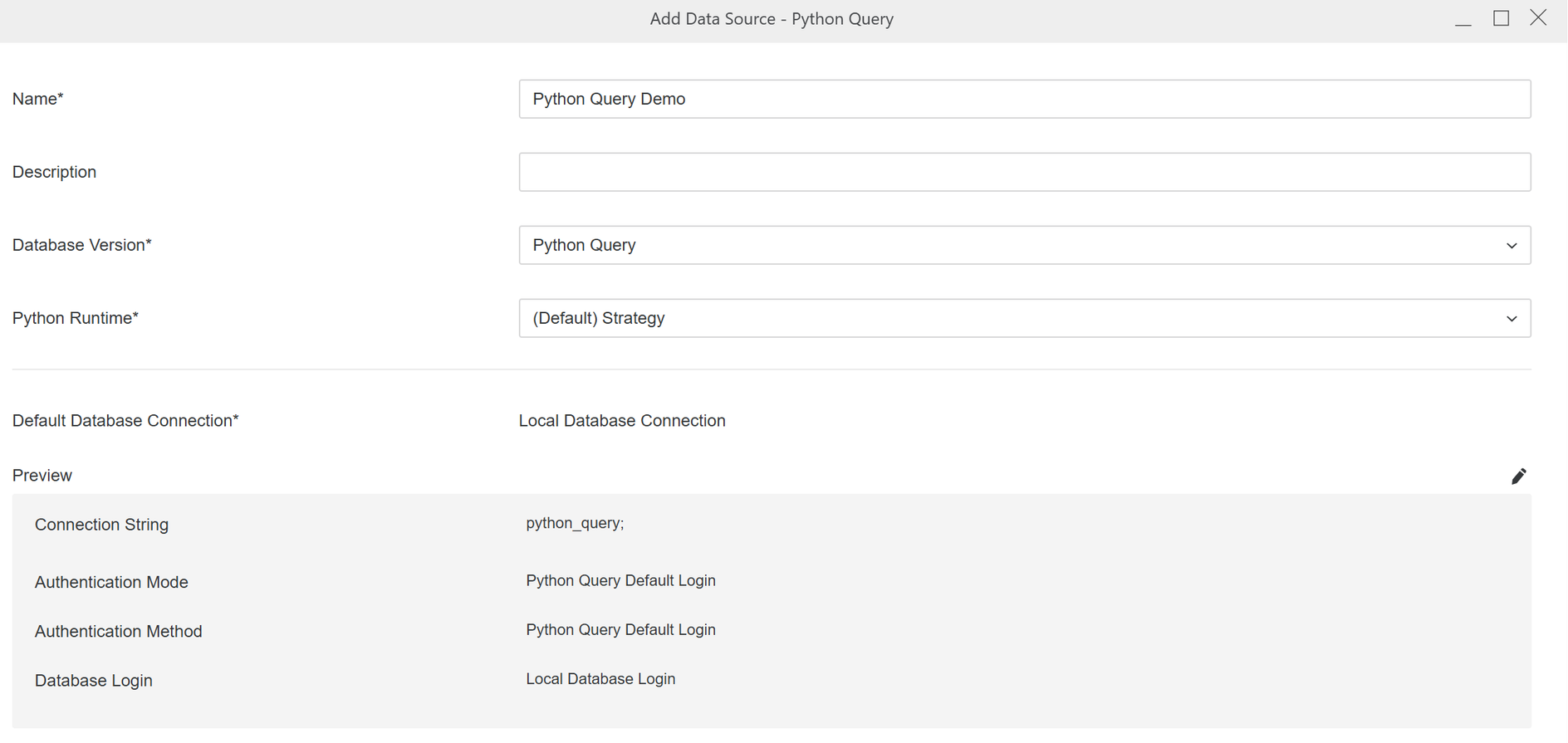
- Configure the database connection, and then click Save.
Create a Python Query Report
- Open the Workstation window.
-
Click File and select New Python Query Report.
- If you are connected to multiple projects, select the desired project, and then click Select.
- From the Data Source drop-down list, select the Python Query data source.
-
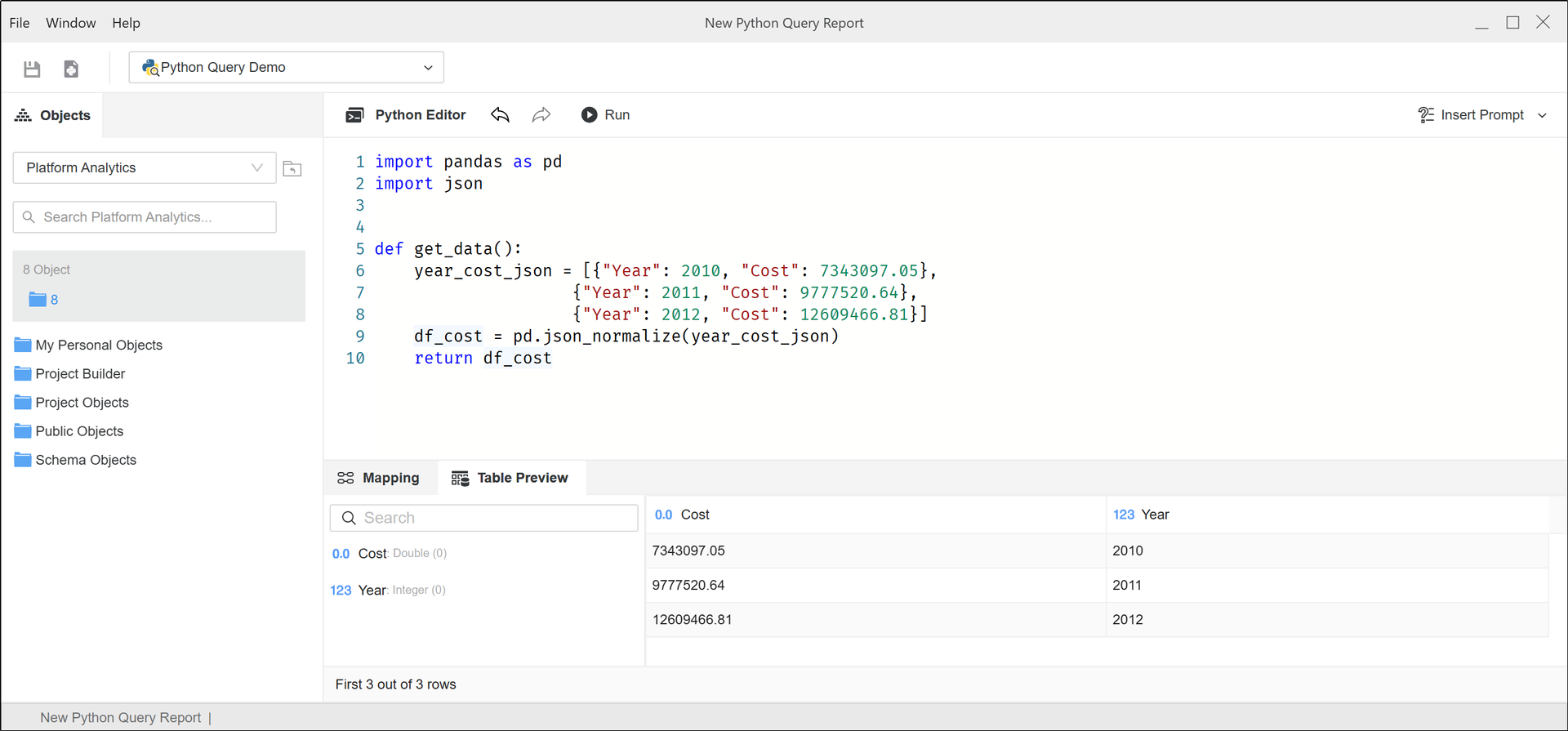
In the Python Editor, enter your Python code, and then click Run to display the data in the Table Preview tab.
The Python code must contain a function called get_data() with a data frame object returned, as shown in the example below.
- If needed, add a prompt by clicking Insert Prompt on the toolbar.
-
In the Mapping pane, map the columns to objects in the data source.

- On the toolbar, click the Save and Open Report icon
 .
.
-
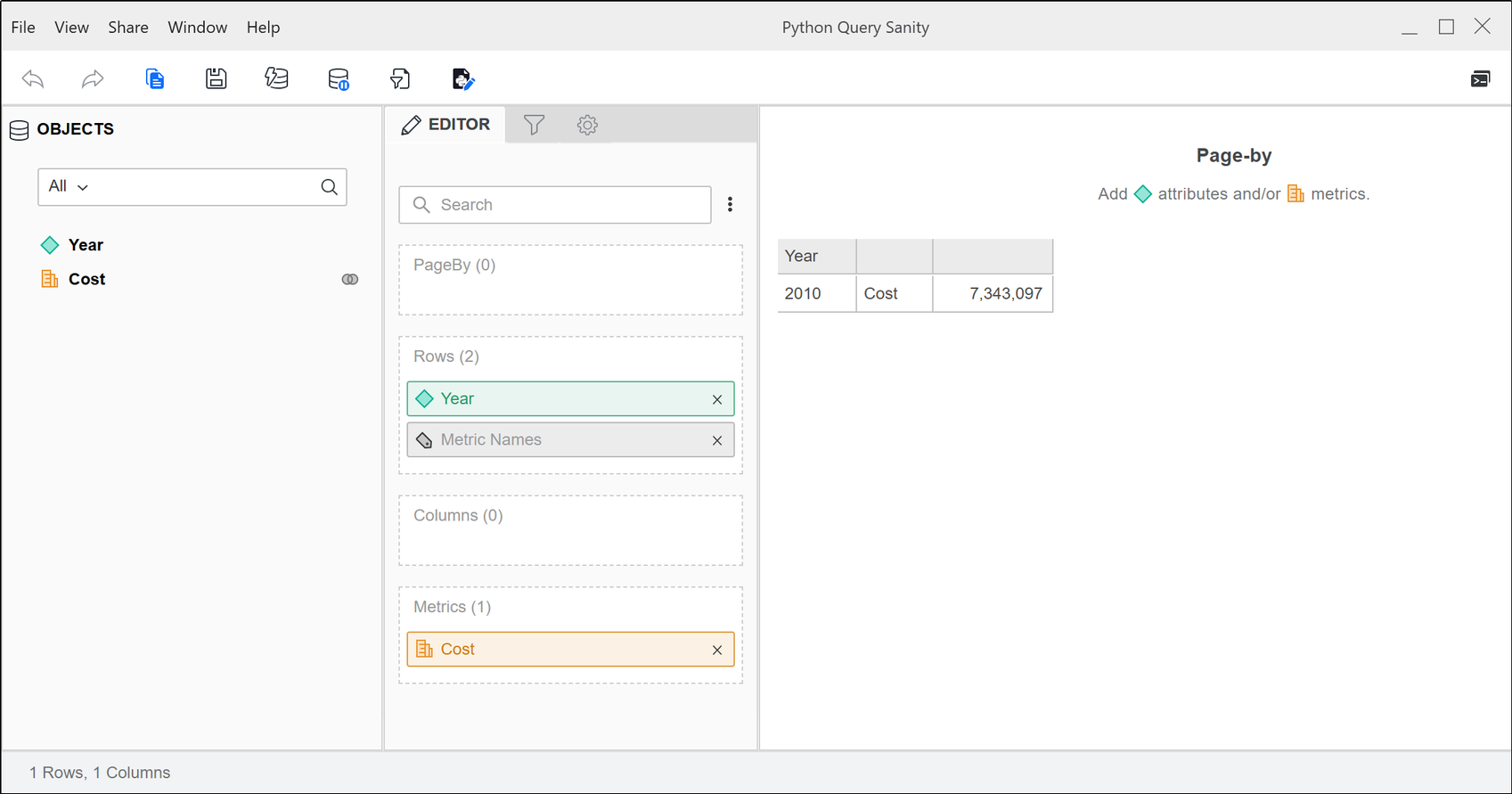
Add attribute and metrics to the Editor panel and run the report.
- Save and close the report.
Create a Python Query Cube
- Open the Workstation window.
-
Click File and select New Python Query Report.
- If you are connected to multiple projects, select the desired project, and then click Select.
- From the Data Source drop-down list, select the Python Query data source.
-
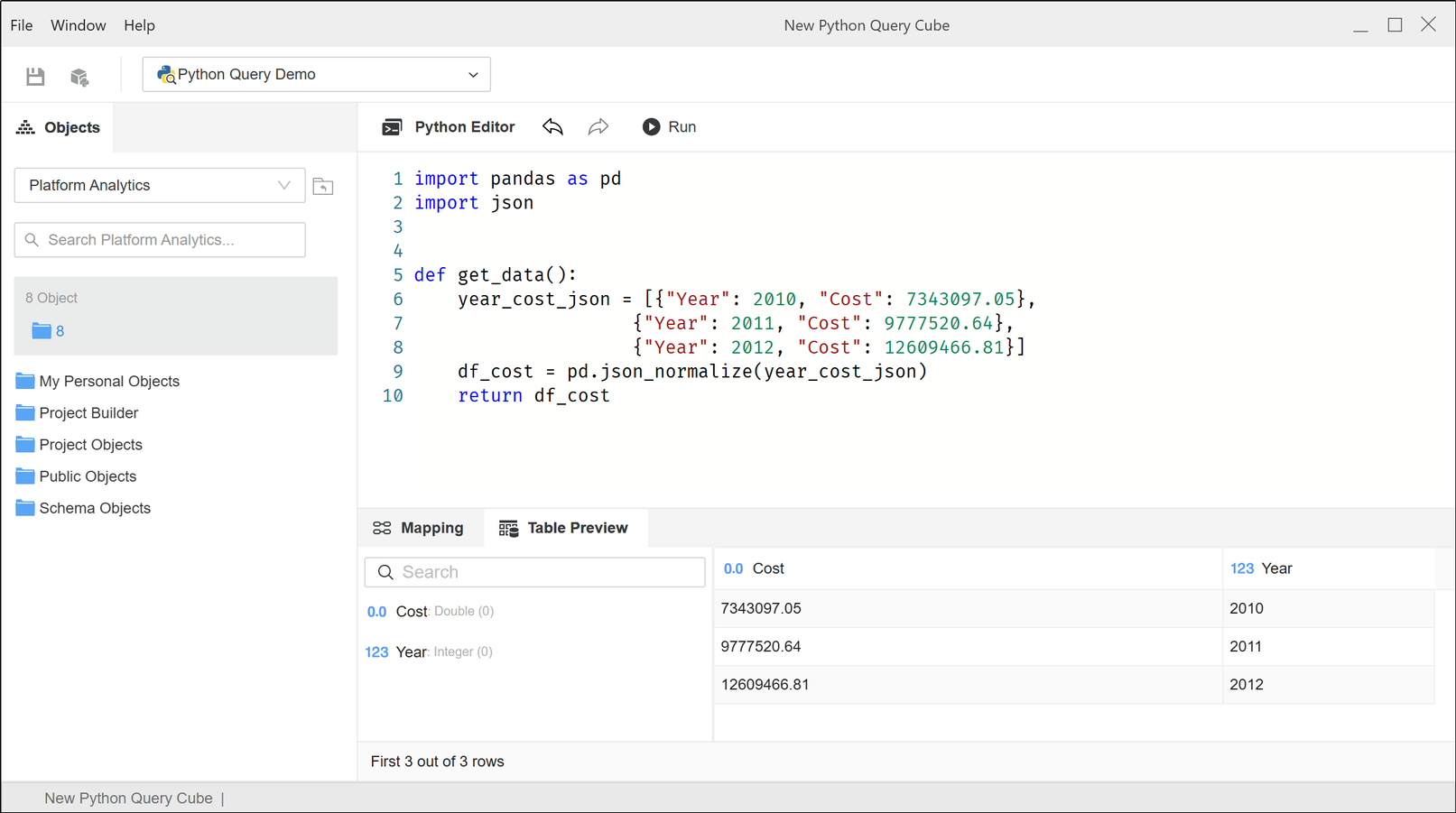
In the Python Editor, enter your Python code, and then click Run to display the data in the Table Preview tab.
The Python code must contain a function called get_data() with a data frame object returned, as shown in the example below.
-
In the Mapping pane, map the columns to objects in the data source.
- On the toolbar, click the Save and Open Cube icon
 .
.
- Save and publish the cube.
Related Topics
Create and Edit Python Runtimes