
View Component and Dependent Objects
Starting in Strategy (September 2026), you can view dependent objects for derived metrics.
Starting in Strategy (August 2026), you can view dependent objects for data sources.
Starting in Strategy One (April 2025), you can view system-managed objects for dashboards and reports.
Starting in MicroStrategy ONE (March 2024), you can view components and dependents for hierarchies and tables. You can also view system managed objects, as well as an object's ID and location.
Starting in MicroStrategy ONE (December 2024), you can refresh cubes in the Dependents dialog.
You can view objects that are components or dependents of a selected object. This is helpful when you need to delete objects and/or their components and dependents.
View Component Objects
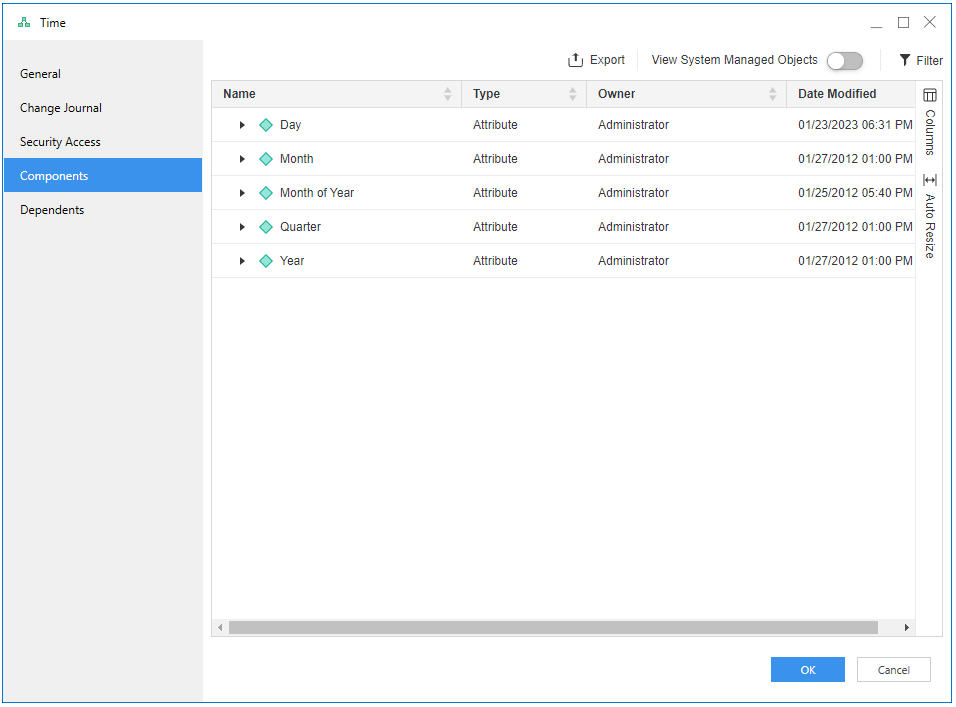
You can view objects that comprise another object. For example, if you view a report's dependent components, you see all of the attributes, metrics, filters, prompts, and other objects used in that report. Viewing the components of an attribute displays the tables, drill maps, hierarchies, and other components of the attribute.
- Open the Workstation window.
- Use the Navigation pane to locate an object.
-
Right-click the object, point to View, and choose Components.
You can also choose Properties and then select Components.
- Click Columns to select columns to view. You can also resize columns to display more information.
- Expand a row to view the component's component objects.
- Click
 Filter to eliminate results by Type, Owner, Date Modified, ID and Location.
 - Right-click a component to view its properties or dependents.
- Click
 Export to export the results in .csv format.
 - Click Settings to enable Show System Managed Objects and Display only System Managed Objects.
- Click OK.
View Dependent Objects
You can view objects that are dependent on another object. For example, if you view a report's dependents, you see all the reports
- Open the Workstation window.
- Use the Navigation pane to locate an object.
-
Right-click the object, point to View, and choose Dependents.
You can also choose Properties and then select Dependents.
The listing displays the direct dependents of the selected object. For example, attribute A is used to create Report R. Report R is also a dataset of Dashboard D. When you view the dependents of attribute A, only Report R appears in the list. However, the Review Recursive Dependents button provides a list of all direct and indirect dependents, so both A and R appear.
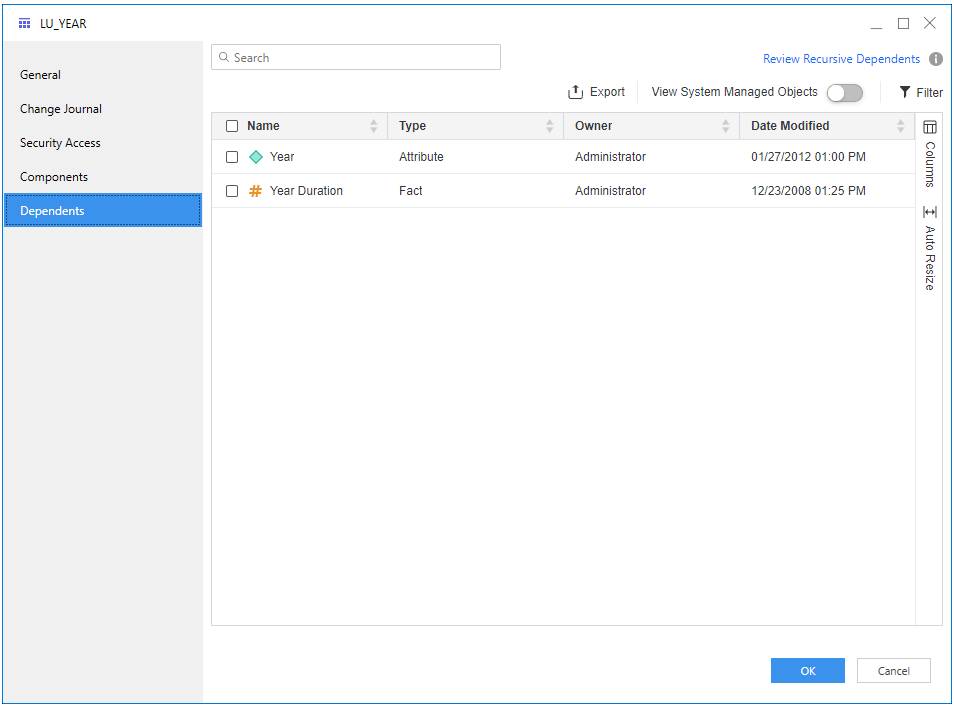
- Click Columns to select columns to view. You can also resize columns to display more information.
- Click Filter to eliminate results by Type, Owner, Date Modified, ID, and Location. You also use the search bar to refine your results.
- Right-click an object to perform a variety of actions depending on the object including view its properties or dependents, refresh, certify, hide, translate, duplicate, or delete it.
- Click Export to export the results in .csv format.
- Click Settings to enable Show System Managed Objects and Display only System Managed Objects.
- Starting in Strategy One (April 2025), you can enable these settings for dashboards and reports.
- Click OK.