Modify the Library Logo and Color Theme
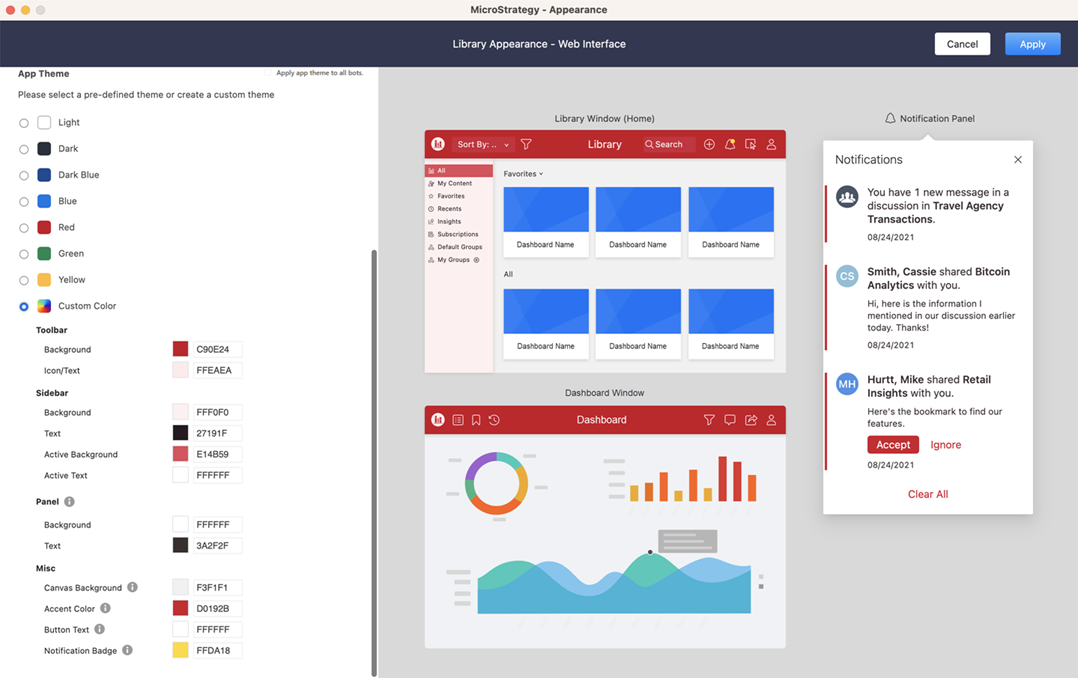
In the Application Appearance Editor, users can select from several predefined color themes, or specify the fill and accent colors for each Library interface component, including the toolbar, sidebar, canvas background color, and more.
You can also:
-
Select the application's font, including a custom font. You need to customize and deploy the font plug-in before the custom font is available. Instructions are included below.
-
Select the default Library logo displayed on different applications, allowing you to provide a white-labeled experience for different organizations or groups of users.
The defined appearance applies to Library Mobile and Library Web. Color preferences apply to collaboration, Strategy Insights, subscriptions, and search interfaces, as well as the table of contents.
Customizing the Library for Mobile icon only applies to the interface of the mobile application. If you want to customize the icon that appears in the home screen of the device, refer to the Mobile SDK documentation on how to rebrand Library Mobile application for iOS or for Android.
Application Appearance Editor changes apply to all interfaces inside the mobile application including collaboration, Strategy Insights, subscriptions, search interfaces, table of contents, and the Filter panel. If you modify the icon that displays in the mobile device home screen and splash screen, you must use the Library Mobile SDK. If you customize Library using the Library Mobile SDK, those customizations take precedence over the application theme. Refer to the Mobile SDK documentation on how to customize the Login Screen for iOS or for Android.
-
Open the Workstation page.
-
In the Navigation pane, click Applications.
-
In the left pane, click Appearance and click
 Enter Appearance Editor.
 -
Enter the URL of the icon image you want to use for the Library Web icon, Library Favorite icon, and for Library Mobile. Starting in Strategy (September 2026), you can use a relative path, such as ./Images/Name.png, images/Name.png, or /images/Name.png. As you make changes, the preview area updates.
- Starting in Strategy (July 2026), dashboard titles in the Library card view are left aligned for improved readability. Starting in Strategy (August 2026), you can define the Card Style as Center Aligned or Left Aligned.
- Select one of the predefined application color themes, or click Custom Color to define your own color choices for each interface component.
-
-
- You can use a custom font to fit your branding requirements. You must customize and deploy the font plug-in before the custom font displays in the App Font drop-down list. If your environment is on Cloud, send your custom font plug-in to the CloudOps team, and they will deploy it in your Cloud environment.
Click here for instructions to customize and deploy the font plug-in.
Download the FontPlugin with the "Zapfino" custom font configured as an example.
Extract the plug-in and navigate to style/fonts. Copy your font file to the style/fonts/directory.
Edit the
global.cssandfontNamesPicker.xmlfiles to ensure the font name and path are correct.Copy the plug-in to the Strategy Library installation directory's plugin folder, New Export Engine Service folder, and Intelligence Server folder. If you are using a containerized environment, you only need to modify one folder. The folders are in the following file paths:
Export Engine:
/opt/mstr/PDFExportService/resources/pluginsLibrary:
/usr/local/tomcat/webapps/0/pluginsIntelligence Server:
/opt/mstr/MicroStrategy/install/PDFGeneratorFiles/plugins
Restart the Library server, Intelligence Server, and New Export Engine Service.
- Starting in Strategy (August 2026), in Card Style, expand the drop-down list next to Text alignment and choose a display option for dashboard title in Library home page cards.
- Click Apply and then Save.
The editor allows you to configure the Library Mobile icon that displays inside the client application. To configure the mobile application icon that displays in the device home screen, refer to the Library Mobile SDK documentation.
View Your Library Logo and Color Theme
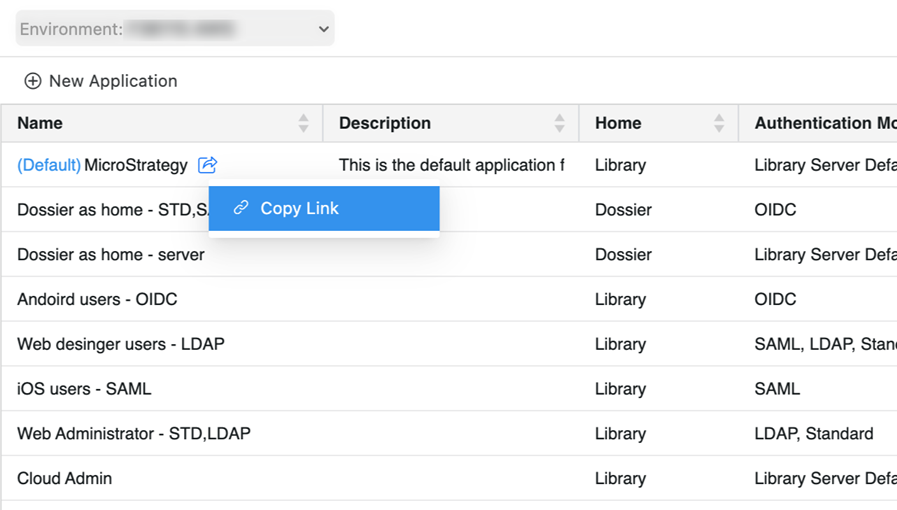
- In the Navigation pane, click Applications.
- Right-click the application and click Copy Link.
- Paste the link in your web browser or configure Library Mobile to connect to your environment and open the application.