
Content Inspector
All custom Web content is disabled by default to ensure a secure platform configuration.
The Content Inspector tool allows you to query the entire metadata to find objects that contain custom Web content (via HTML containers or attributes and metrics with the HTML Tag form type), review custom Web content, and approve it by enabling HTML and JavaScript content option on each object or in bulk. Only dashboards, documents, reports, and agents that are enabled by a security administrator render custom Web content. This setting mitigates security risks associated with custom HTML and JavaScript that execute when users edit or consume content.
Enable and Disable HTML and JavaScript Content
-
Open the Workstation page.
- In the Navigation pane, click Environment Settings.
- Click the Content Inspector tab.
All objects with embedded HTML content display. A green check mark displays next to each object that has its HTML content enabled, like the Performance Troubleshooting and InActive Users reports in the example below.
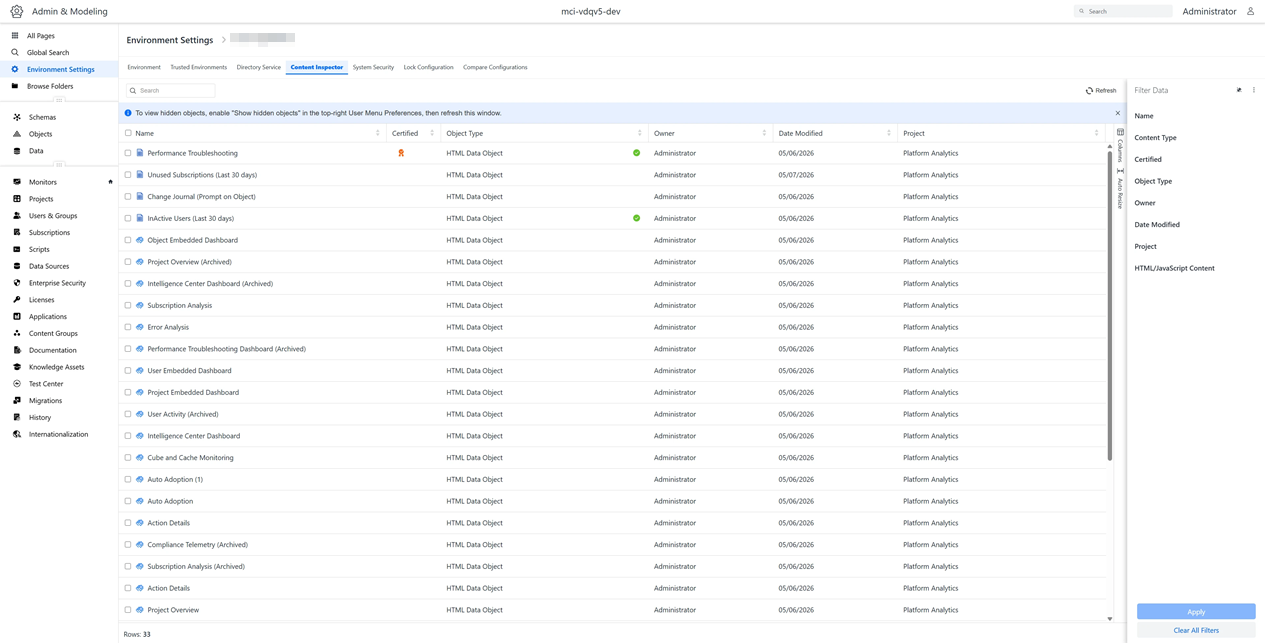
- Use the Filter panel to can filter the objects by Content Type or other criteria.
-
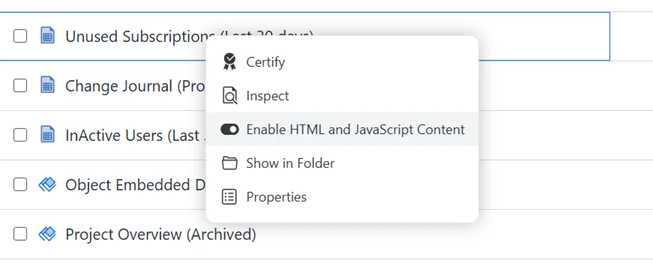
To enable or disable or disable HTML content rendering when an object is opened, right-click an object and select Enable/Disable HTML and JavaScript Content.
-
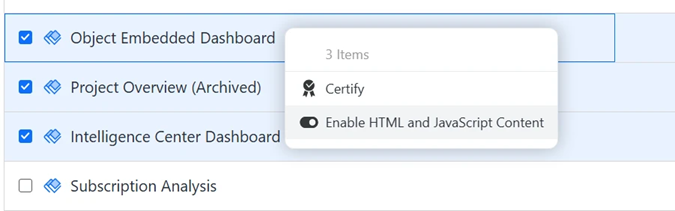
To enable or disable HTML content for multiple objects, select the check box for each of the objects. Right-click a selected object and select Enable/Disable HTML and JavaScript Content.
-
To view the details of the embedded content for an object:
-
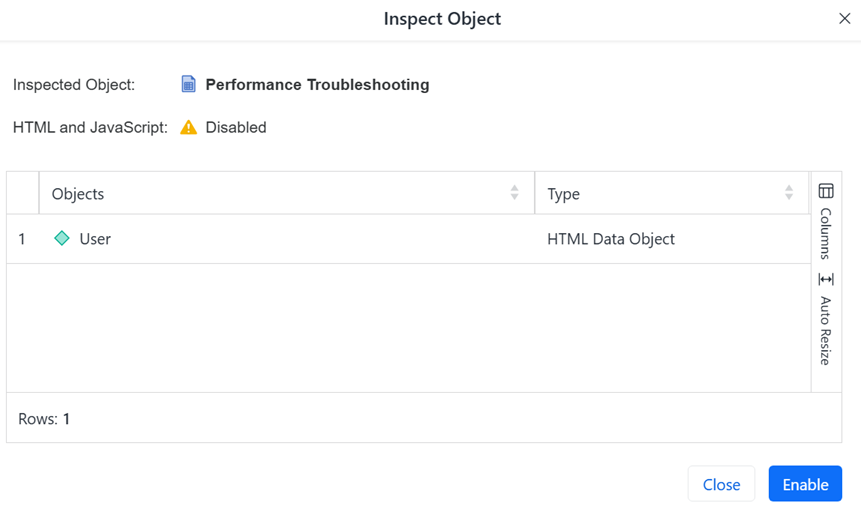
Right-click the object and select Inspect.
The Inspect Object window displays the detailed HTML content in the object.
-
You can enable or disable the HTML content by clicking Enable or Disable.
-
Click Close to return to the Content Inspector.
-
-
You can complete the following actions in the Content Inspector. Right-click the object and select the option.