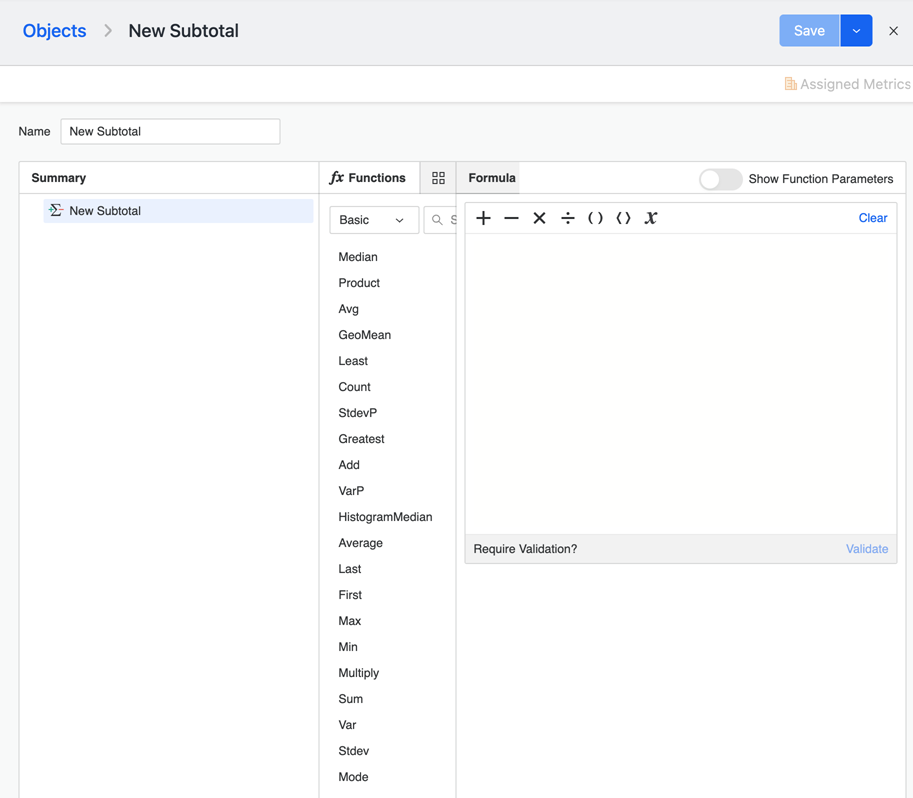
Create Custom Subtotals
Custom subtotals offer a way to define aggregations that suit specific business requirements, other than the out-of-the-box options such as Sum, Average, Mean, etc.
To use, create, and edit subtotals, you must have at least one the following privileges:
-
Client-Web: Web use metric editor
-
Server-Intelligence: Create application objects
-
In the Navigation pane, click Objects.
- In the top right corner, click Create New Object.
- In the Create New window, if you are connected to multiple projects, select the project from the drop-down list on the left.
- Click Subtotal.
-
On the Functions tab, double-click a function to add it to the Formula Editor.
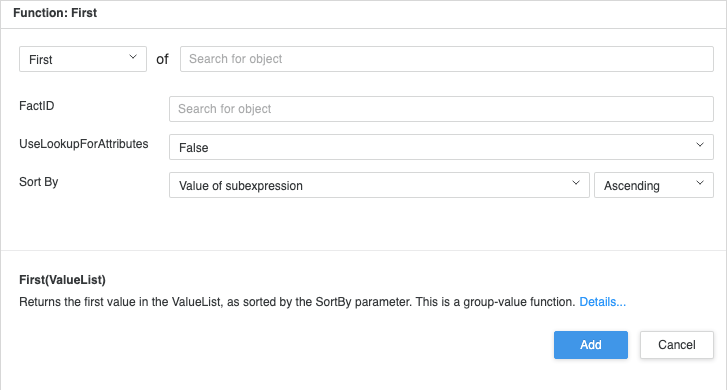
You can also add a function by hovering over it and clicking Add with Details. The corresponding dialog provides additional guidance for modifying the function parameters prior to modifying the formula.
-
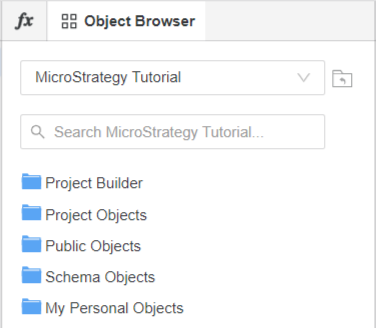
Select the Object Browser tab to add objects from your project.
-
Build your formula and Validate it when you are finished. Remember that x is the placeholder for the metric to be subtotaled in your report.
-
Once you have validated your formula, you can enable Show Function Parameters to view and modify the parameters.
-
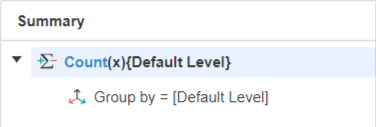
Expand the subtotal in the Summary pane to see the Group By level.
-
Assign a Name to your custom subtotal.

-
Click Save.