
Create Datamart Objects
A data mart is a data repository where you store the results of a report as a relational table in a data warehouse. After creating a data mart, you can use it as a source table in your projects, and execute reports against it. You can use data marts for the following applications:
-
Create aggregate fact tables to improve the performance of reports that have summarized data.
-
Create tables for use by other applications, such as Microsoft Access.
-
Create tables for off-line analysis using direct SQL queries.
Before you can create a data mart table, you need to create a data mart report, as described below.
Create a Datamart Object
-
In the Navigation pane, click Objects.
- In the top right corner, click Create New Object.
- In the Create New window, if you are connected to multiple projects, select the project from the drop-down list on the left.
- Click Datamart.
-
In the left panel, choose the objects to add to your datamart object.
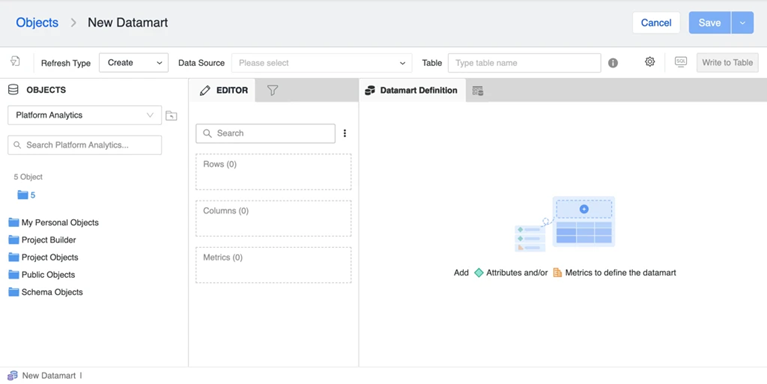
-
Select the Data Source from the drop-down list in the toolbar.
-
In the Table box in the toolbar, enter the table name to use. The View Data button (in the Datamart Definition tab) or Write to Table button (in the toolbar) are enabled once you type a table name.
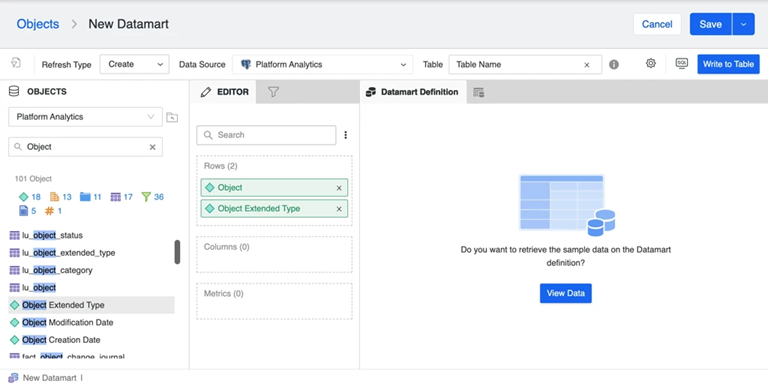
-
In the toolbar, select your Refresh Type. The options are:
-
Create (default)
-
Append
-
-
-
You can optionally write the information to the data source, by clicking Write to Table in the toolbar.
-
Click
 Properties in the toolbar to set the datamart properties. You can define the evaluation order, the prompt order (if the dataset contains prompts), table generation settings such as maximum execution time and a table qualifier, and advanced properties such as joins and indexing.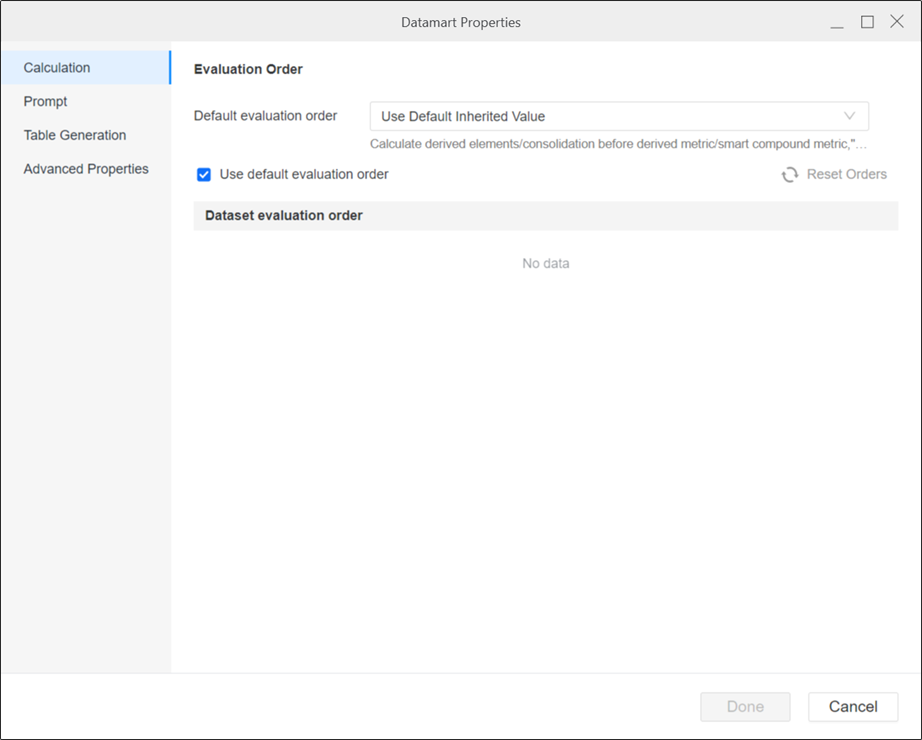
-
Click Save .