Create Planned Tasks
Starting in Strategy (September 2026), planned tasks are supported in instance-based Managed Cloud Enterprise environments.
Planned tasks are available in containerized cloud deployments. For information on accessing this feature, contact your Cloud Technical Account Manager.
Prerequisites
-
You must have the following Client - Architect privileges:
-
Administer Planned Tasks: Create, edit, and delete your own planned tasks, as well as deactivate and delete tasks created by others
-
Monitor Planned Tasks: Monitor and view details of planned tasks
-
-
You must also have created a script and a schedule to use with the tasks.
Create a Planned Task
-
Open the Workstation page.
- In the Navigation pane, click Planned Tasks.
- In the top right corner, click Create Planned Task.
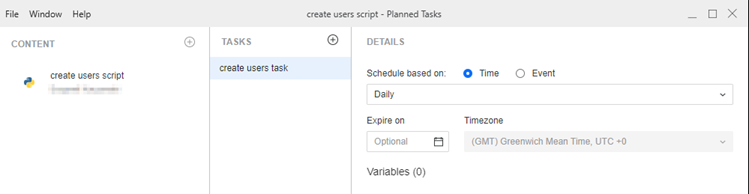
- Specify the:
- Content: The Python script to be executed
- Tasks: The name of the task
- Details: Schedule details and script variable(s) if used in the underlying script
- Click Save.
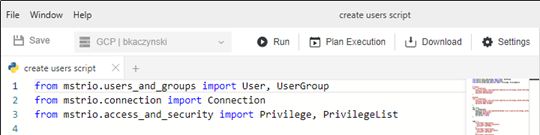
You can also create a planned task in the Script Editor, by clicking Plan Execution.
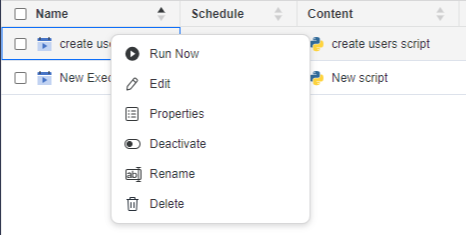
After you create and save the planned task, you can access it from the Planned Tasks window. Right-click the task and select the appropriate option to:
-
Execute the task (Run Now)
-
Edit the task
-
View the task's Properties
-
Activate or Deactivate the task
-
Rename the task
-
Delete the task
You must be the owner the planned task to execute (run) or edit it.
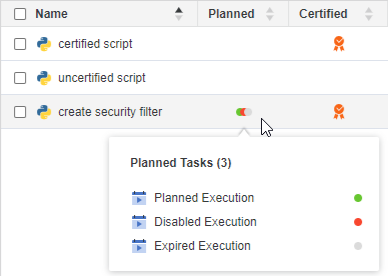
In the Scripts window, a Planned column displays. Right-click in the Planned column of a script to view a list of planned tasks associated with the script and their status, as shown below: