
Disable and Enable Gateway Access
Administrators can set gateway security access for a specific users or groups. They can set which gateways are inaccessible when a user or group fetches data.
Set Security Access for Gateway
-
Open the Workstation page.
- In the Navigation pane, click Data sources.
- Click the Gateways tab.
- Right-click a gateway and choose Properties.
- In the left pane, click Security Access.
- Choose a user or group, and select or clear its permission check boxes in the bottom of the window.
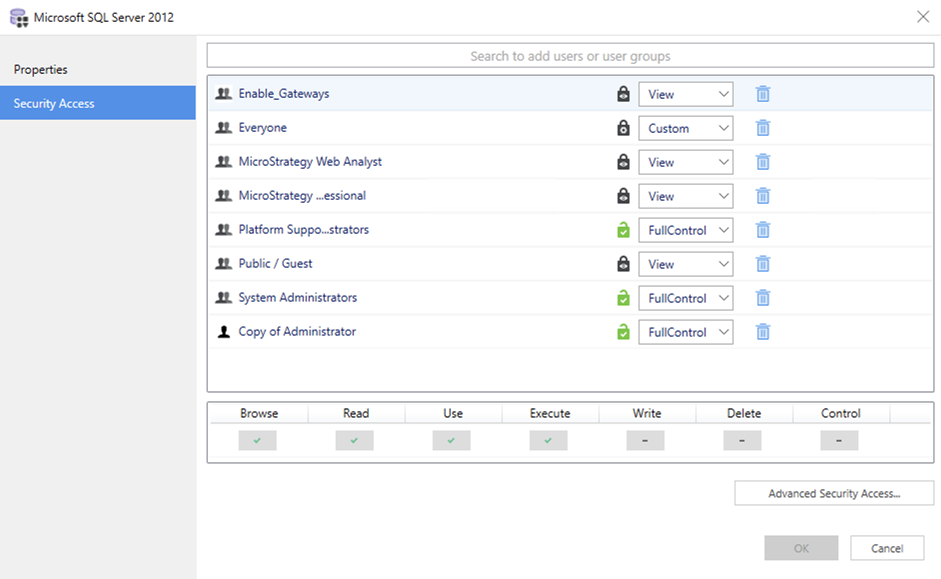
Disable the Execute Permission for Gateways
To disable a user or group from using Execute for a gateway, set the Execute right to Deny in the Security Access panel at the bottom of the window.
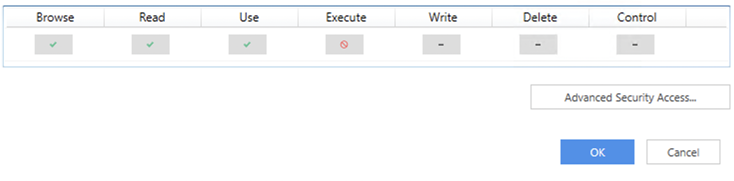
If a user or group's gateway Execute permission is set to Deny, a warning message displays when fetching data. The following warning messages can display:
- You do not have sufficient permission to access the resource you requested. If the problem persists, please contact the Strategy Intelligence Server Administrator
- The user does not have 'Execute' access to this 'xxx' object
The following steps when fetching data based on a denied gateway cause the error message to display:
- Connect to a DB Instance
- Preview
- Publish cube
- Republish cube
- Schedule cube
- Execute report