
Grant Permissions and Manage Access for Application Objects
Enable Manage Access
-
Open the Workstation page.
- In the Navigation pane, click Applications.
- Edit the (Default) Strategy Application or click New Application.
- In the left pane, click Components.
- Expand Share and enable Manage Access.
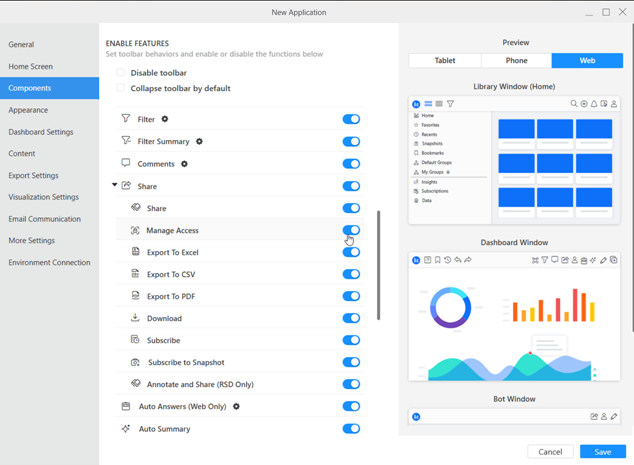
- Click Save.
For new installations, the Manage Access option is enabled by default. For existing installations, the Manage Access option is disabled by default.
Enable Manage Access for an Agent
- Ensure you have Manage Access enabled in Workstation.
- Under Agent Window, expand Share .
- Enable Manage Access.
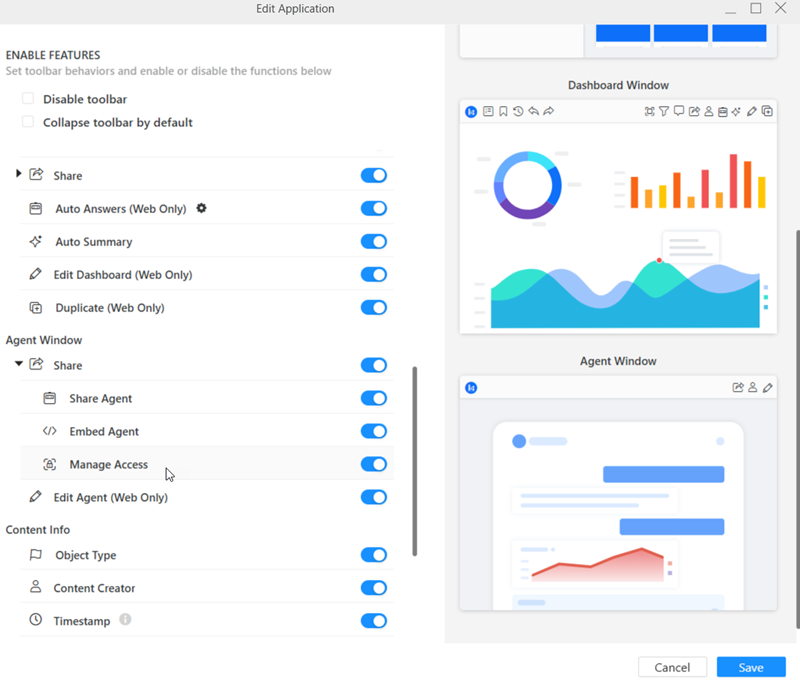
-
Click Save.
For more information on enabling Manage Access, see Enable Manage Access.