
Lock and Unlock Environment Configurations and Projects
Configuration Lock
Configuration locks prevent other Strategy users from modifying configuration objects such as users, user groups, data sources, events, schedules, security roles, delivery types, delivery devices, and database connections.
Configuration locks are placed by an administrator while performing upgrades on Strategy environments to lock the metadata. When other users attempt to open an object in a locked configuration, a message informs them that the configuration is locked. Users can choose to view the objects without the save option.
Project Lock
Project locks prevent other Strategy users from modifying objects in the locked project. When this lock is turned on, no one, including the administrator, can perform modifications on any objects. Users can execute reports in a locked project, but the object definition that is used is the last definition saved prior to the project being locked.
Project locks are placed when an architect or an administrator is performing any schema changes or administrative changes in the project. This allows the architect or administrator to make the changes needed on the schema and save them before another architect or administrator modifies the object definition. A metadata lock on the project prevents users from editing all objects and cube refreshes in the project.
When other users attempt to open an object in a locked project in Strategy Workstation, a message informs them that the project is locked. Users can choose to open the object in read-only mode without the save option to view the object definitions.
Only the user who locks a project, or another user with the Bypass All Object Security Access Checks and Create Configuration Objects privileges, can unlock the project.
-
Open the Workstation page.
- Do one of the following:
- In the Navigation pane, click Environment Settings.
- Click the Account
 icon on the top right. In the list of Environments, hover your cursor over an environment connection. Click the Lock
  icon that displays.
- Click the Lock Configuration tab.
-
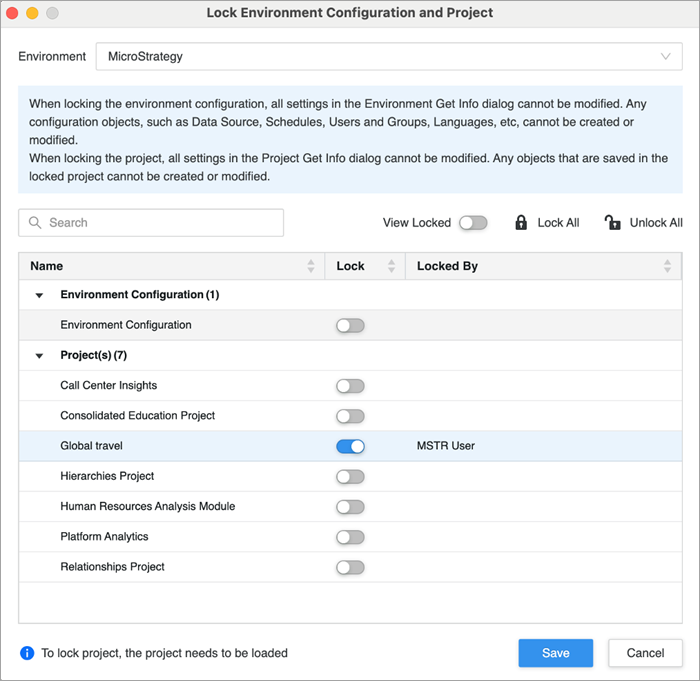
Use the search to look for your desired environment configuration or project.
-
Use the Lock toggles to place configuration locks and project locks.
-
Use the Lock All and Unlock All options in the toolbar to lock or unlock all environment configurations and projects.
-
To view all locked configurations and projects, toggle on View Locked in the toolbar.
-
If an environment configuration or project is locked, you can view who has locked it.
-
Click Save.