Create Migration Packages
Starting in Strategy (September 2026), you can configure default conflict resolution settings for migration packages.
Starting in Strategy (August 2026), you can add Mosaic schemas to migration packages and use a new setting to synchronize source and target folder locations for migrated objects.
Starting in Strategy (July 2026) turn on the Display System Managed Objects toggle to display system managed objects in the package creation page.
Starting in Strategy (June 2026), enable a setting to display embedded objects in the list when you search dependencies.
You can only view objects to which you have access when creating packages.
You can create these package types:
-
Object: Copies chosen objects with or without their dependencies between projects.
-
Project: Synchronizes a large number of objects between projects.
-
Administration: Copies the chosen administration objects with or without their dependencies between environments.
Object Migration Packages
The object package type is used to move objects between projects.
-
Open the Workstation page.
-
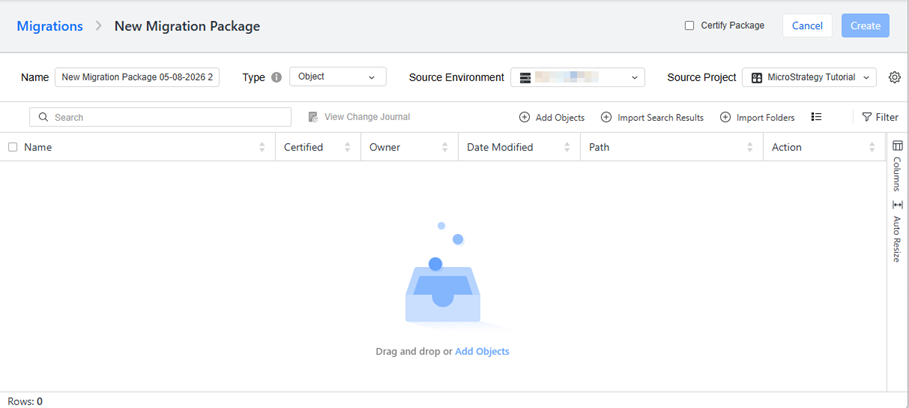
In the Navigation pane, click Migrations. On the Package tab of the Migrations window, click New Migration Package. The Object package Type is selected by default.
-
A default package name is provided, but you can type a new Name.
-
-
Click Add Objects to add content to your package.
If the user does not have the read and browse ACL when creating a package, the object cannot be seen in the Add Objects dialog.
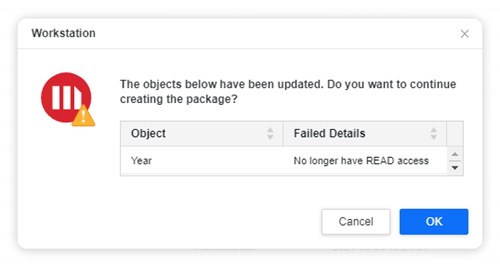
When objects are updated before the user clicks Create, an error with the object name and failure details displays. This message details whether the object was deleted, modified, or there is no longer read access since the objects' ACL changed.
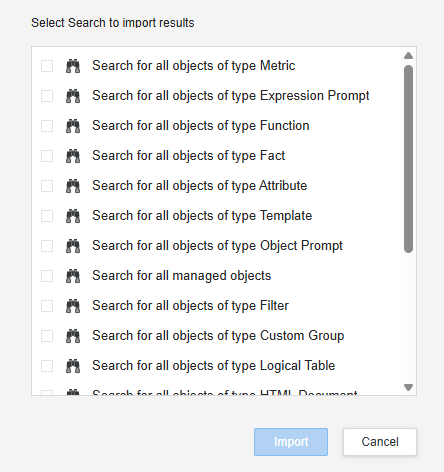
To import objects from a search, select one or more Search objects you created or choose from a default list of searches. Click Import.
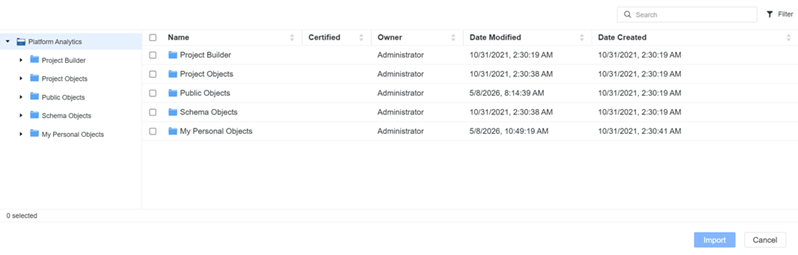
You can also import folders. Click Import Folders and select one or more folders to import. Click Import.
-
After you add objects, you can add their dependencies. Right-click an object and choose Add Dependencies.
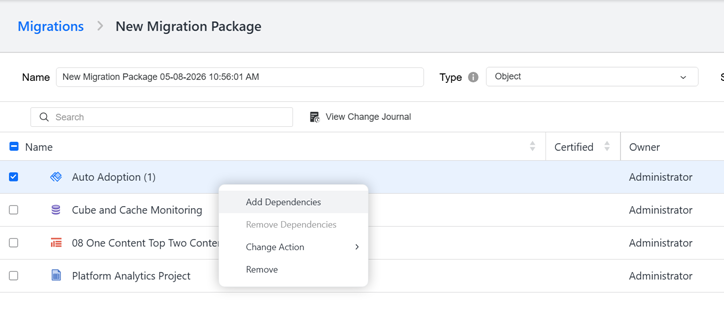
For the folder objects, you can import objects belonging to them, but not add their dependencies.
-
Select the type of dependencies to add to your package. Objects from other categories are not added.
Your selections on this dialog are remembered the next time you add dependencies. If you don't want to add different object types as dependencies, select Remember the selected object type and the dialog will not display again for this package.
-
Added dependencies display in a tree structure. You can choose to remove one or all dependencies of an object.
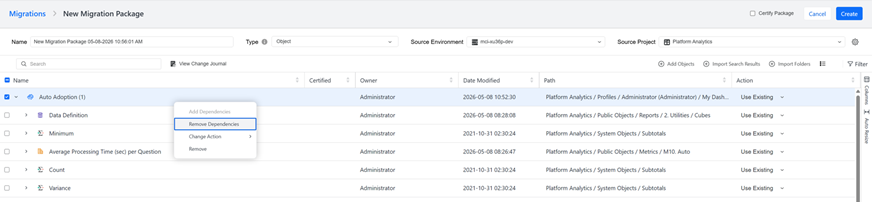
-
Set the Action for objects in the package. The action determines how the object is saved in the source environment.
-
Click Settings
 to set ACL Options and Update Schema for migration objects. For more details about the options, see ACL and Update Schema Options.
 -
Click Create.
Project Migration Packages
The project package type is used to merge large amounts of objects between projects.
-
Open the Workstation page.
-
In the Navigation pane, click Migrations. On the Package tab in the Migrations window, click New Migration Package. The Object package Type is selected by default.
-
A default package name is provided, but you can type a new Name.
-
Change the package Type to Project.
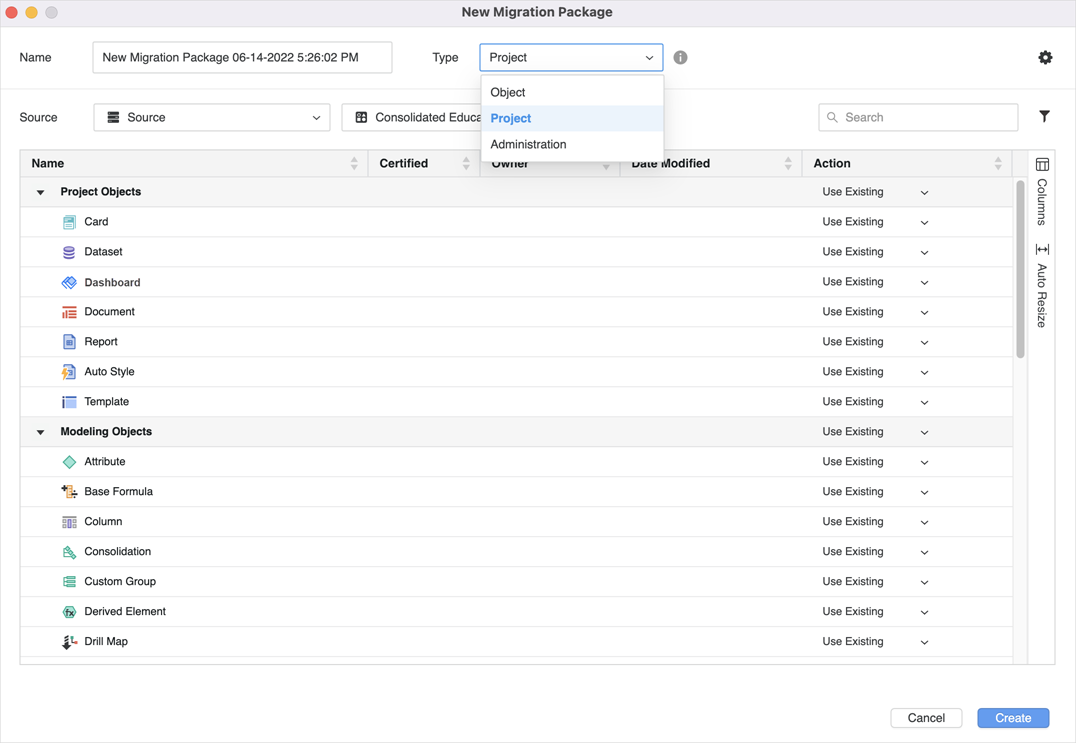
-
-
Click Add Objects to add content to your package.
-
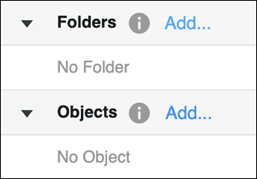
You can assign different actions to folders and objects. Next to Folders or Objects, click Add.
Objects located directly within chosen folder have the same Action assigned by default. The Action is not changed recursively for objects in subfolders. A different Action set on a specific object overwrites the Action chosen for the entire category of this type.
-
Click Settings
to set ACL Options, Schema Update details, and Advanced Conflict Resolution for migrating objects. For more details about the options, see ACL and Update Schema Options.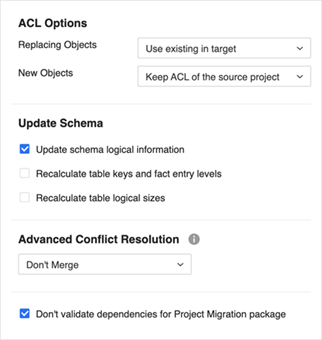
-
Click Create.
Administration Migration Packages
The administration package type is used to move administration objects between environments.
-
Open the Workstation page.
-
In the Navigation pane, click Migrations. On the Package tab in the Migrations window, click New Migration Package. The Object package Type is selected by default.
-
Change the package Type to Administration.
-
-
Click Add Objects to add content to your package.
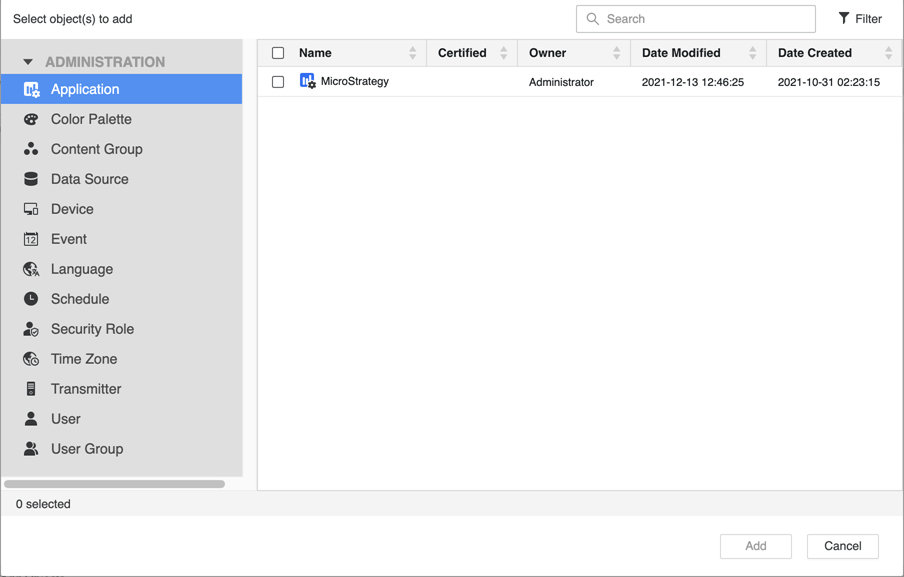
-
Once you have added objects, you can right-click them to Add Dependencies or Change Action based on your needs.
-
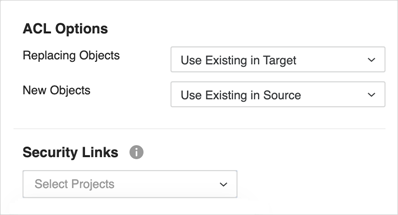
Click Settings
to set ACL Options and Security Links for migration objects.Click here for more details about the options.The ACL Options control what permissions are applied to objects when a conflict is resolved with a Replace, Create New, or Keep Both action.
For conflicts resolved with the replacing objects:
-
Use existing in Target Keeps the destination object ACL.
-
Use existing in Source uses the source object ACL.
-
Merge Both Migrates the object ACL in both the source and target objects. If this option is selected, the ACL is replaced even if the source and destination objects are identical.
For conflicts resolved with newly created objects (including the Create New and Keep Both action):
-
Use existing in Source Keeps the source object ACL.
-
Use existing in Target The object inherits its ACL from the destination folder. The permissions in the source project are not used.
In Security Links, use the check boxes to include project-level information about any users and groups included in the configuration package. For more information about project security packages, see KB483069. This option is enabled only when users or groups are added into the Create Package dialog.
-
-
Click Create.
-
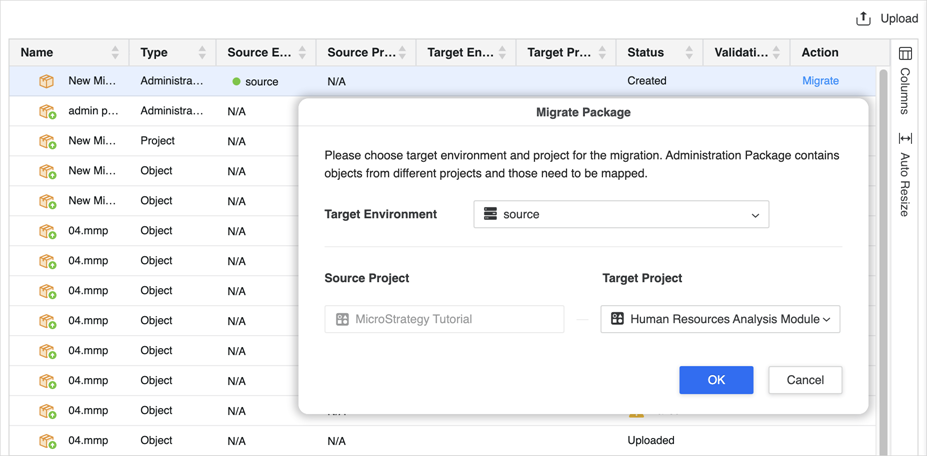
Track the progress of the package back in the grid. Once it is finished, click Migrate in the Action column.
-
Select the target environment and project and click OK.
-
If the migration is successful, the Action column changes to Reverse. If you need to undo the migration, click Reverse. You can also right-click the record and delete it. If the migration fails, the Action column changes to Failed. Hover over it to view details about the migration failure.
Create Migration Packages in List View
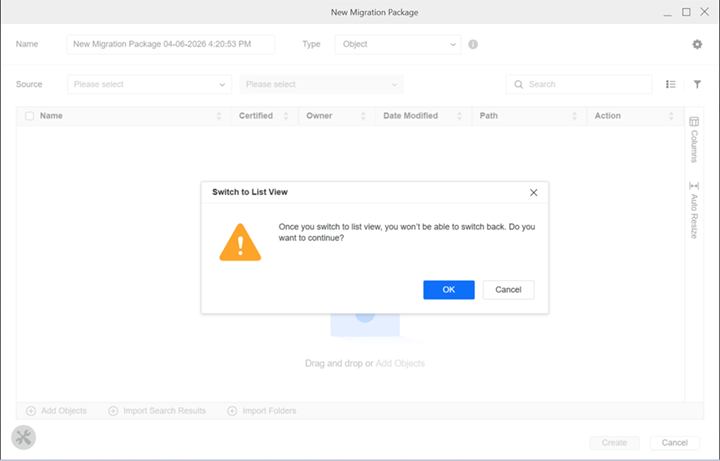
List view is only available for object and administration packages. Once you switch to List view, you can not switch back. You should only view and edit a package in List view if it was created in that view.
You can not add Mosaic schemas in the List view.
-
Open the Workstation page.
-
In the Navigation pane, click Migrations. In the Packages tab on the Migrations window, click New Migration Package. The Object package Type is selected by default.
-
Click Switch to List View
 .
. -
In the confirmation dialog, click OK.
-
To add content to your package, click Add Objects.
-
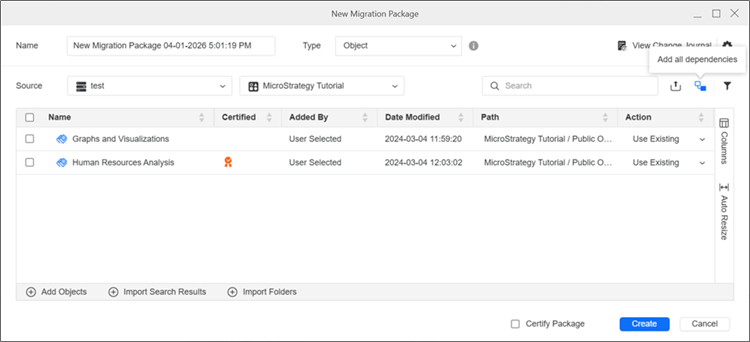
To add object dependencies after you add objects, click Add all dependencies
 .
.
-
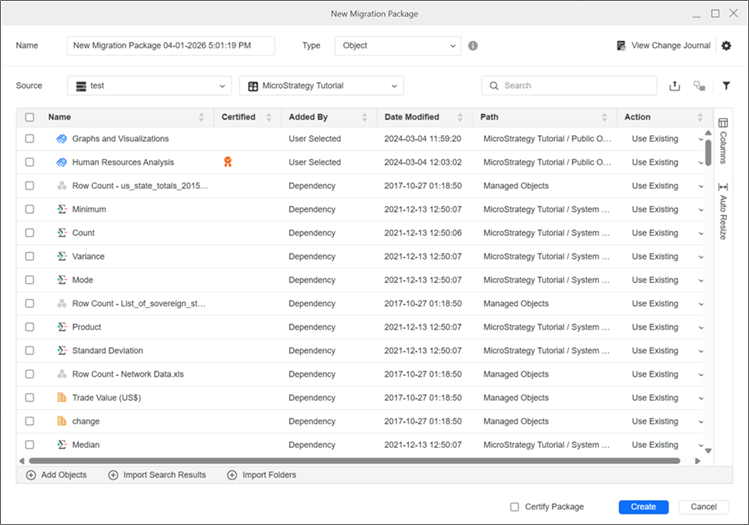
All dependencies of the selected objects will be fetched recursively and added to the package. Dependency objects display as Dependency in the Added By column.
-
To bulk perform actions, select the check box next to the items you want to perform an action, right-click an object, and choose an option.
-
Click Create.
Migration Package Settings
-
Open the Workstation page.
- In the Navigation pane, click Migrations.
-
In the Package tab, click Settings
and optionally select the check box next to the following settings:-
Exclude parent attributes when searching dependencies:
-
Exclude child attributes when searching dependencies:
-
Show embedded objects when searching dependencies: Starting in Strategy One (June 2026), if you enable this setting, embedded objects display in the list when you search dependencies.
-
Use source object's "Last Modified" timestamp instead of migration time:
-
Synchronize folder locations for source and target for migrated objects: Starting in Strategy (August 2026), if you enable this setting, when you migrate an object or administration package, the path of the replaced object in the target environment is enforced to remain consistent with the path in the source environment.
-
Conflict Resolution - Default Object Actions: Starting in Strategy (September 2026), you can determine the default actions for objects when a conflict occurs when creating a migration package. You can define the default actions for the following object categories and types:
-
Project objects
-
Administration objects
-
Modeling objects
-
Users and user groups
-
Delivery
For a list of project, administration, and modeling objects, see Supported Objects.
You can set a different default action for objects selected by the user and for dependent objects of the selected objects. For example, you can set selected application objects to default to Use newer to ensure that you have the most recent version of any metrics and reports. You can set dependent schema objects to default to Replace to use the source project's version of attributes, facts, and hierarchies.
These selections are only the default actions. You can update the conflict resolution action for a given object when you copy that object.
-
-
ACL and Update Schema Options
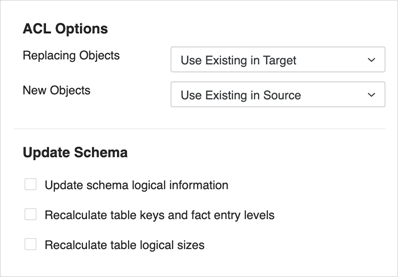
The ACL Options control what permissions are applied to objects when a conflict is resolved with a Replace, Create New, or Keep Both action.
-
For conflicts resolved with the replacing objects:
-
Use existing in Target Keeps the destination object ACL.
-
Use existing in Source uses the source object ACL.
-
Merge Both Migrates the object ACL in both the source and target objects. If this option is selected, the ACL is replaced even if the source and destination objects are identical.
-
-
For conflicts resolved with newly created objects (including the Create New and Keep Both action):
-
Use existing in Source Keeps the source object ACL.
-
Use existing in Target The object inherits its ACL from the destination folder. The permissions in the source project are not used.
-
The Update Schema options allow you to configure the package to automatically perform certain schema update functions. These options can be useful if you make any changes to schema objects.
-
Update schema logical information Applies an automatic schema update.
-
Recalculate table keys and fact entry levels Select this if you changed the key structure of a table or if you changed the level at which a fact is stored.
-
Recalculate table logical sizes Overrides any modifications that you have made to logical table sizes. Logical table sizes affect how the Strategy SQL Engine determines which tables to use in a query.
Starting in Strategy (July 2026), the Display System Managed Objects toggle can be turned on to display system managed objects in the package creation page. It affects the package content to migrate.