
Create Facts in Bulk
Starting in Strategy (October 2026), architects can simultaneously create multiple facts using the new bulk fact editor. The tables and columns available in the project are searched to automatically identify fact candidates based on configurable rules. Architects can quickly generate facts whenever a new source is connected or an existing one is expanded, improving consistency, reducing the risk of misconfigured facts, and significantly speeding up model setup.
Create Multiple Facts
- Ensure that the Mosaic schema for your new facts is available for editing. You can unlock the schema in the Schema Editor by clicking the lock icon for the project.
- In the Navigation pane, click Objects.
- In the top right corner, click Create New Object and select Bulk Fact Creation
- Bulk fact editor opens.
Starting from this point Mosaic schema is locked.
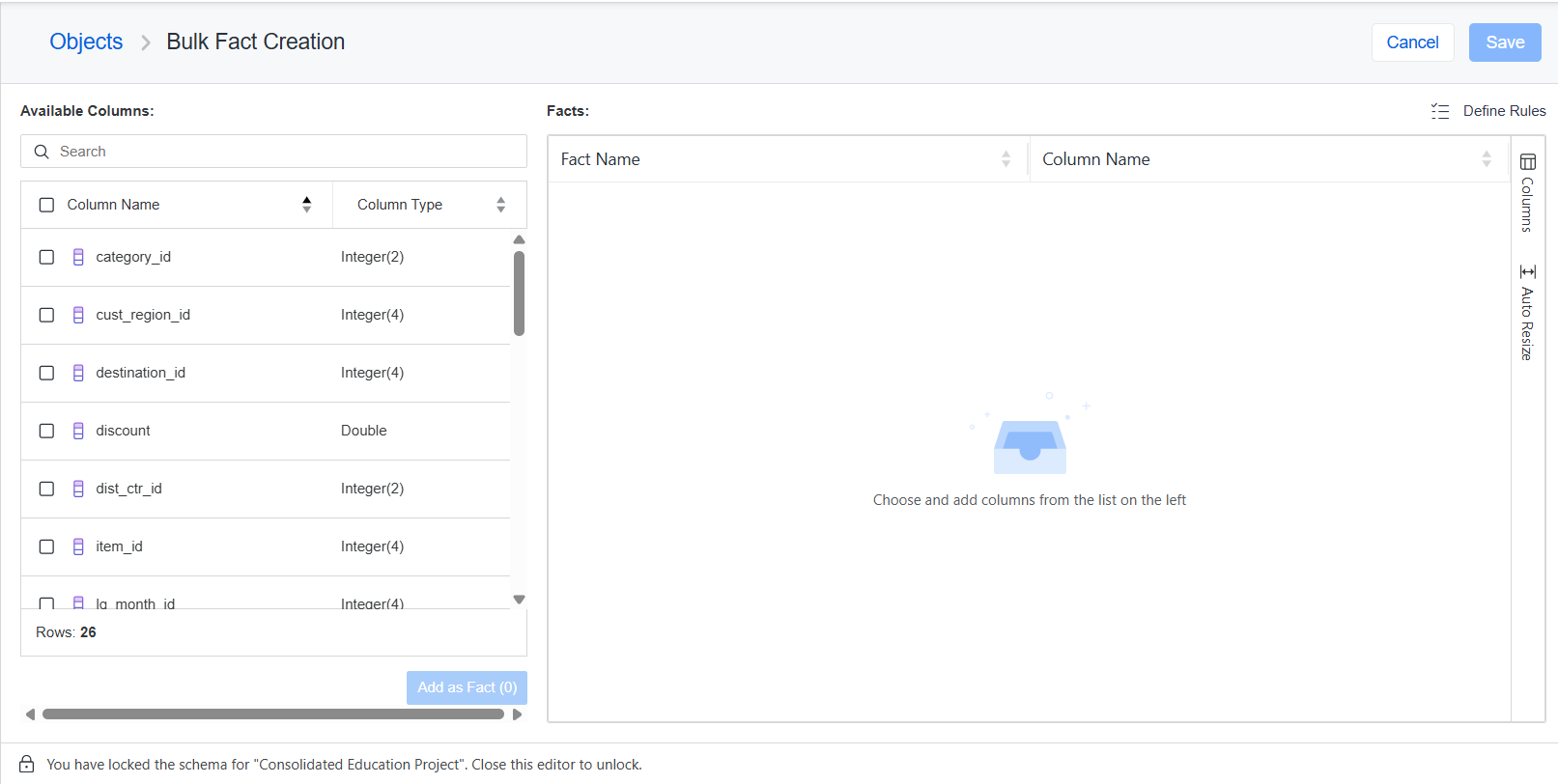
Define Rules
-
Click on the Define Rules button in the top right corner of the editor.
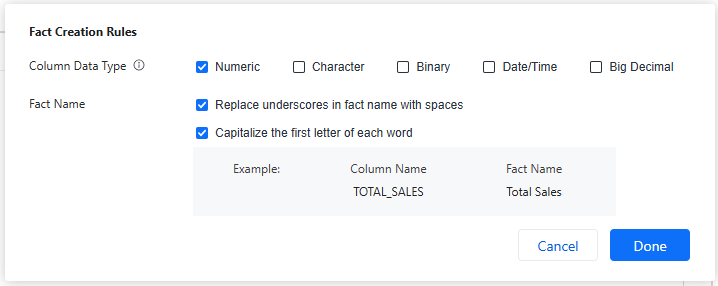
- Under Column Data Type, select the data types used in fact columns in your data source. Only columns with data types selected here are displayed as candidate columns for facts.
- Under Fact Name, define the rules to determine how the name for the fact is created, based on the name of the column. These rules follow the most common naming convention principles.
-
Click Done to close the Define Rules dialog box and go back to bulk fact editor.
Create Facts
-
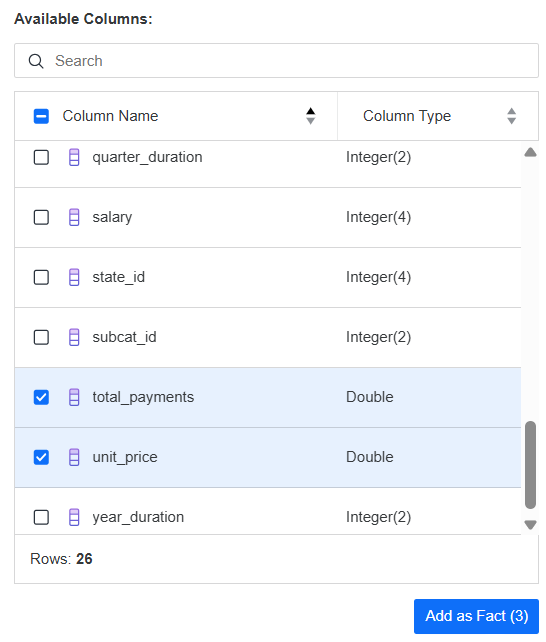
Under Available Columns a list of candidate columns is displayed in a table.
- Under Column Name, select the check boxes next to the column names you want to use to create new facts.
- You can search for columns by typing their names in the Search Box.
- Use the View Selected toggle to display only the selected columns.
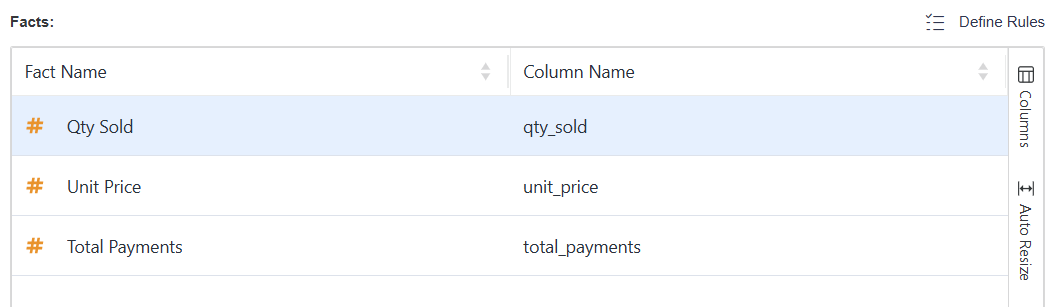
- When your selection is complete, click Add as Fact. The facts based on the selected columns are created and displayed under Facts.
- Under Fact Name, the automatically generated name of the attribute is displayed. Right-click the name and select Edit to change the name.
- To remove a fact from the list, right-click the name and select Delete.
- Once all edits are complete, click Save. The new facts are created in the Facts folder.
Mosaic schema is released. Reload the schema to use new facts in your project.