View User Activity
You can view statistics and trends related to user activity. You must have permission to view users through a connected environment.
You must to view dashboard usage activity.
The Platform Analytics cube must be published for the data to show up correctly and in real time.
The current user must have view access to the PA project.
View User Activity
-
Open the Workstation page.
- In the Navigation pane, click Users & Groups.
- Click Users, if the list of users is not displayed.
- Right-click the user to view activity for, and choose View Activity.
-
In the left pane, click User Activity.
- View statistics and trends of the user's activity in the associated environment.
- Click OK.
User Connections Monitor
-
Open the Workstation page.
- In the Navigation pane, click Monitors.
- In the left pane, click User Connections.
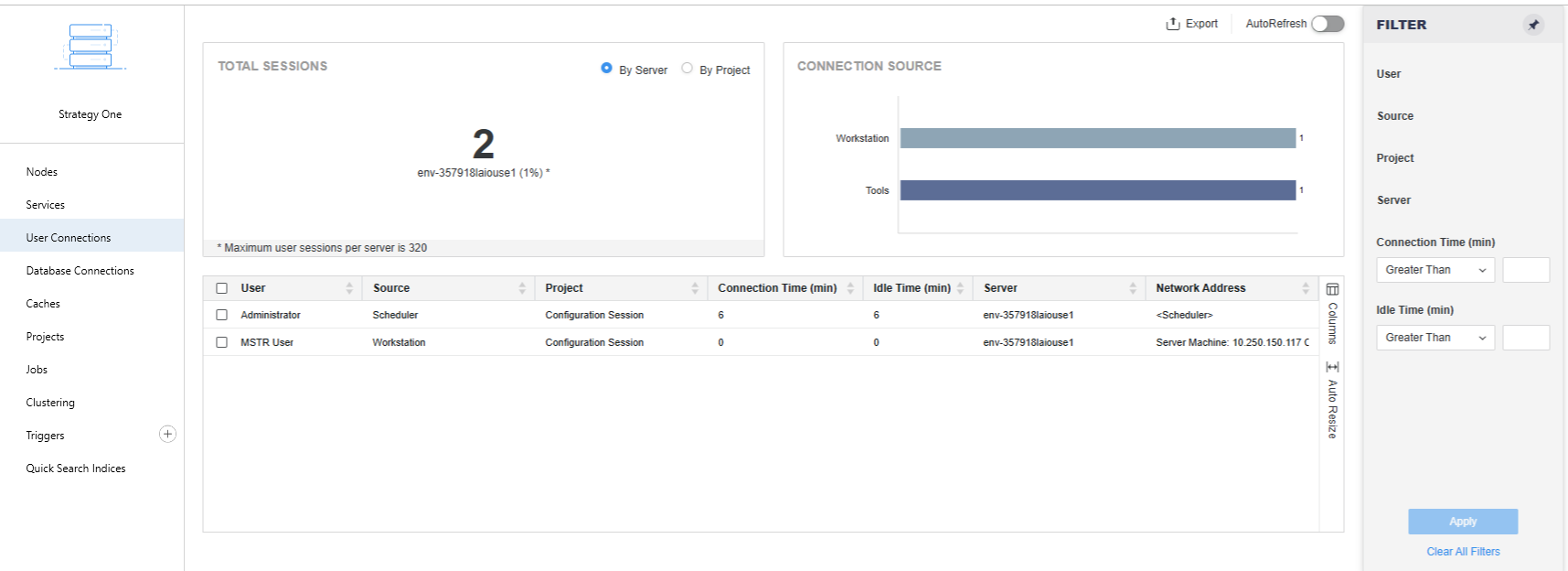
Administrators can view the total number of sessions by server or project, along with the source of each connection. The Filter panel can be used to narrow results and focus on specific users.