
Refresh Cubes
Refresh your cubes and datasets to replace the dataset rather than republish it to assure that data structure changes (such as removing or adding columns in a spreadsheet) are made in the dashboard's dataset .
Prerequisites
To refresh cubes from Monitors, you need the following privileges:
-
Monitor Cubes
-
Monitor Cluster
-
Publish Intelligent Cube
-
Web Publish Intelligent Cube
To refresh cubes from Datasets, you need the following privileges:
-
Publish Intelligent Cube
-
Web Publish Intelligent Cube
Refresh a Single Cube
- Open the Workstation window.
- In the Navigation pane, click Data.
-
Right-click a cube and choose Refresh.
-
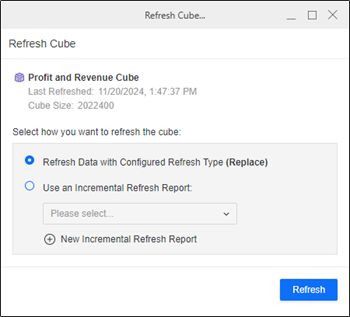
Select one of the following options:
 s
s-
Refresh Data with Configured Refresh Type (Replace): Choose this option to update the existing data.
-
Use an Incremental Refresh Report: Choose this option to use a report to refresh your data. Choose a refresh report from the drop-down list or click New Incremental Refresh Report to create a new report.
For more information, see Create Incremental Refresh Reports (IRRs).
-
-
Click Refresh.
A confirmation message displays.
-
To check that your refresh was successful:
-
In the Navigation pane, click Monitors.
-
In the left pane, click Caches.
-
Ensure Cubes is selected in the toggle at the top.
-
Check the Last Refresh Status and Last Refreshed columns of your cube to ensure your refresh was successful.
-
Refresh Multiple Cubes
The selected cubes must be the same cube type or the refresh option will not be available.
- Open the Workstation window.
- In the Navigation pane, click Data.
-
Select the check boxes next to the cubes to refresh.
-
Right-click the selection and choose Refresh.
-
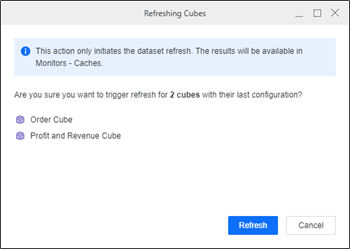
Confirm the list of cubes and datasets to refresh is correct.
-
Click Refresh.
-
To check that your refresh was successful:
-
In the Navigation pane, click Monitors.
-
Click Caches.0
-
Ensure Cubes is selected in the toggle at the top.
-
Check the Last Refresh Status and Last Refreshed columns of your cubes to ensure your refresh was successful.
-