Refresh Data Import Cubes
Refreshing a cube updates its in-memory data from the underlying data sources.
Refresh a Data Import Cube
- Open the Workstation window.
- In the Navigation pane, click Data.
-
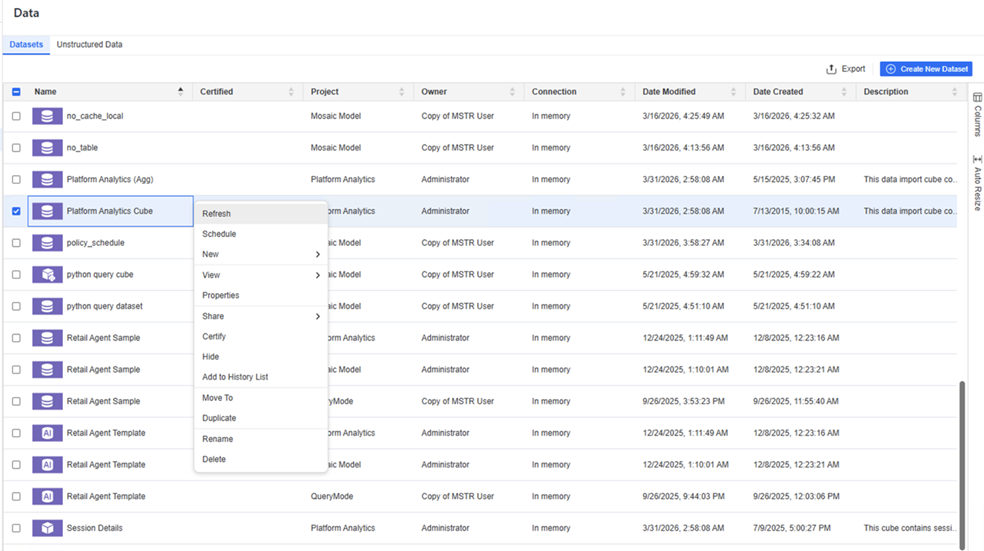
Right-click the cube to refresh and choose Refresh.
-
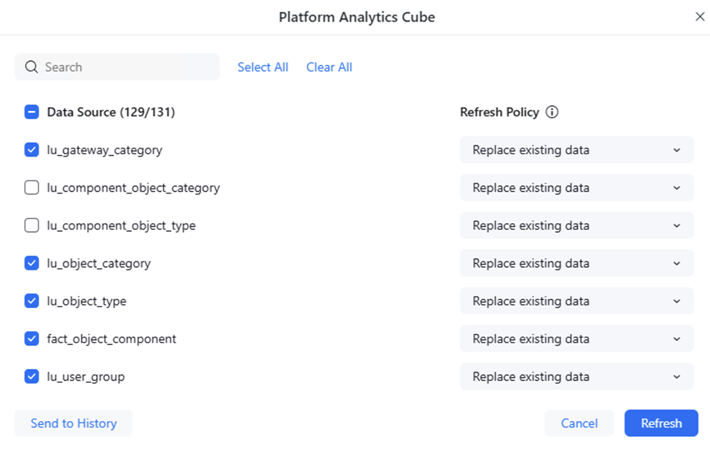
In the Data Sources list, select the tables to refresh.
-
If the data source is local, browse to the file to refresh the cube.
-
For each selected table, select its Refresh Policy from the drop-down list:
-
Replace existing data (default): Overwrite the existing data.
-
Update existing data and add new data: Update existing data and add any new data not previously included.
-
Update existing data: Update the existing data.
-
Add new data: Retain the existing data, without modifying it, and add new data that was not previously included.
-
-
Do one of the following:
-
To immediately start the refresh job and start loading data into the cube, click Refresh.
-
To queue the refresh job as a background job and add it to the History List to review later, click Send to History.
-
-
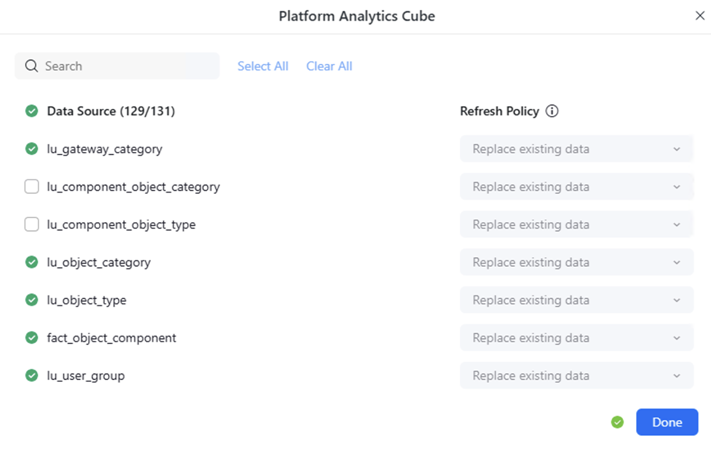
When the refresh job is complete, a green check displays and you can click Done.
If warnings such as mismatched data types or missing columns display, you can choose to Cancel or Continue the refresh.