
Schedule a Data Import Cube Refresh
Schedule a data import cube refresh to automatically reload data at a defined interval, without requiring manual intervention.
Schedule a Data Import Cube Refresh
-
Open the Workstation page.
- In the Navigation pane, click Data.
-
Right-click the cube to schedule and select Schedule.
-
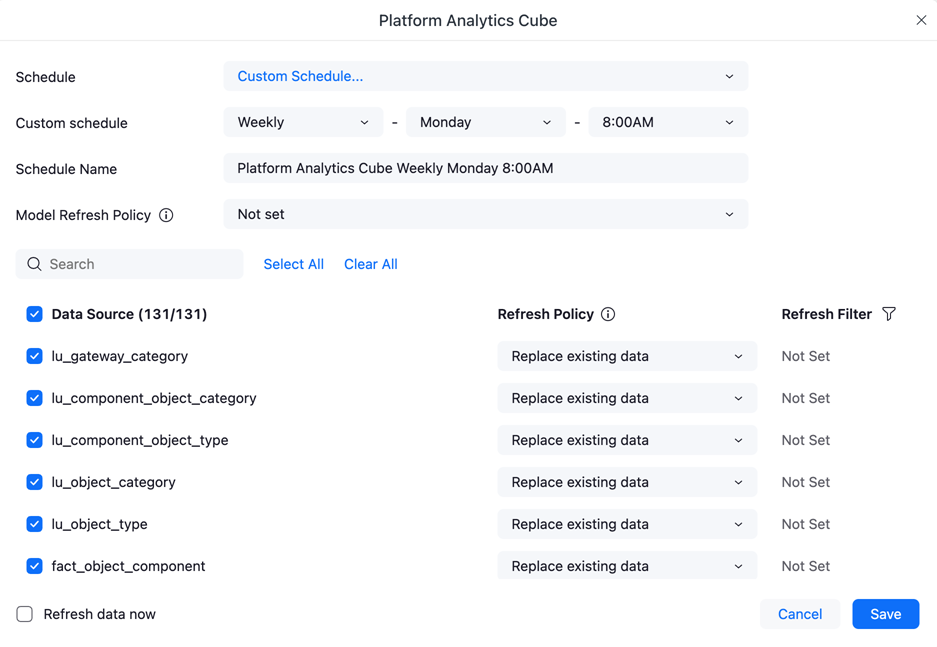
In the Schedule drop-down list, choose how to define the refresh timing:
-
Choose a Predefined Schedule Template: Select from the list of existing schedules, such as Daily and Monday Morning.
Click here for a list of predefined schedule templates.-
All the Time
-
At Close of Business (Weekday)
-
Books Closed
-
Daily
-
First of Month
-
Load Metadata Event Schedule
-
Monday Morning
-
On Database Load
The schedule template list is based on the schedules configured in your Strategy environment, so your available schedules may differ.
-
-
Custom Schedule: Define your own schedule:
-
Select the Frequency: Daily, Weekday, Weekly, or Monthly.
-
For Weekly frequency, select the Day to run the refresh.
-
Select the Time of day to run the refresh, such as 8:00 AM.
-
-
-
The Schedule Name is automatically defined by the predefined schedule template or the options you selected for the custom schedule. You can edit the name to make it more descriptive or meaningful.
-
In the Data Sources list, select the tables to refresh.
-
For each selected table, select its Refresh Policy from the drop-down list:
-
Replace existing data (default): Overwrite the existing data.
-
Update existing data and add new data: Update existing data and add any new data not previously included.
-
Update existing data: Update the existing data.
-
Add new data: Retain the existing data, without modifying it, and add new data that was not previously included.
-
-
For each selected table, you can optionally define a filter to limit which data is refreshed.
The filter statuses are:
- Not Set: The refresh filter is not dependent on the table.
-
Set: The refresh filter is dependent on the table.
-
N/A: The table does not support refresh filters. The table may not be supported if the source is a local file or the table has saved wrangle operations.
Click here for steps to define a refresh filter for a specific table.-
Select Refresh Filter
 next to the table.
 -
In the Based on drop-down list, choose an option and define the filter depending on your selection.
-
Click Save.
-
To add more filters for the data source, click Add New and define your new filter.
-
Click Save. Refresh Filter
 indicates that there is a refresh filter set on the schedule.
-
To refresh your data source immediately after you save the schedule, select the Refresh data now check box.
-
Click Save.