
Contacts and Contact Groups
Starting in the MicroStrategy 2021 Update 5.2 release, the ability to create contacts and contact groups to subscribe to content in subscriptions was introduced as an out-of-the-box feature.
Create Contacts
A contact is what Strategy users select to subscribe themselves or other users to reports or documents. They do so by selecting a contact name, rather than having to specify email addresses, file storage locations, or printer locations at the time of report subscription. Depending on needs, a user may require multiple delivery locations of different types, such as email addresses, file storage locations, FTP server, mobile devices such as iPad, iPhone, Android, and printer locations. To make it easier to manage all email addresses, mobile devices, file, FTP and print delivery locations for your users, you can create contacts.
To create a contact, it must be linked to a Strategy user to be available for subscriptions. Since the system needs a security profile to execute the reports, documents, or dashboards subscribed to a contact, it must be linked to a Strategy user for the required security profile. This means that when a subscribed report needs to be sent to a contact, the report is executed using the credentials and the security profile of the linked user.
A contact inherits the security profile of its linked user object. For example, if the user object is from the Intelligence Module, it will consume the Server - Intelligence license and if it is from the Reporter Module, it will consume the Server - Reporter license.
- In the Navigation pane, click Users & Groups.
- Click the Contacts tab.
-
- Click Create.
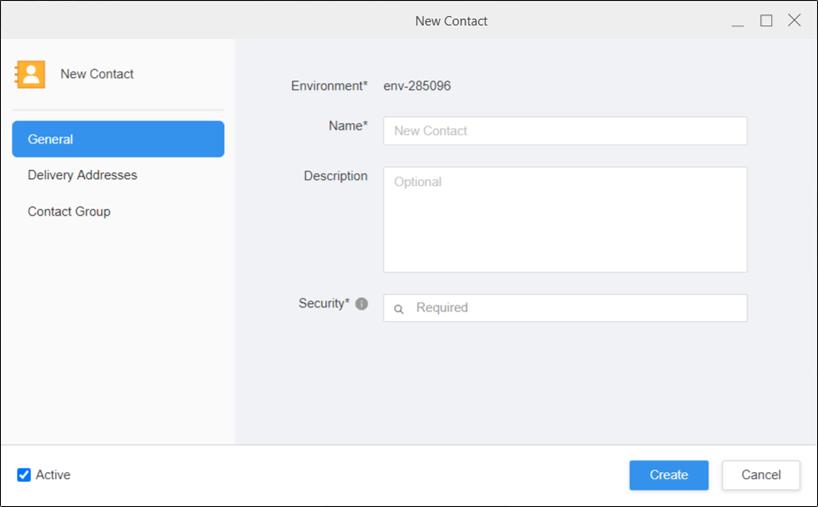
Enter the name and description for the contact. Security for a contact is defined by the user account which is linked to the contact. The security of the user is applied to the contact for all the projects.
Users must have view access to Subscription Delivery Type (Transmitters) and Delivery Devices to create a new contact.
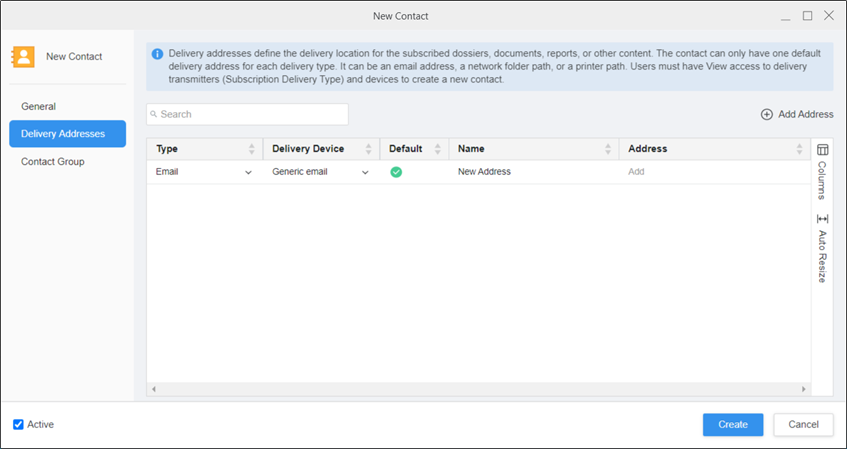
Delivery addresses define the delivery location for the subscribed dashboards, documents, reports, or other content. The contact can only have one default delivery address for each delivery type. It can be an email address, a network folder path, or a printer path.
Click  Add Address and choose the delivery type, delivery device, name, and address.
 , and upload the address's encryption key (the public certificate from the recipient's email address).
For more information on encrypted delivery devices, see Create a Delivery Device
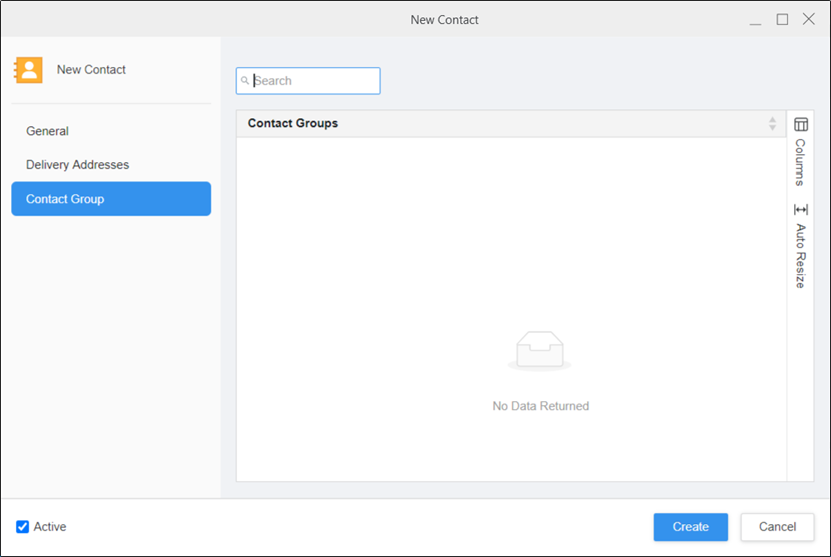
Any contact groups that are created and mapped to the user display here.
Create Contact Groups
A contact group allows you to group multiple contacts together. Contact groups are useful to create when there are certain reports that need to be sent to multiple contacts. For example, if there are four contacts that need to receive the same subscribed reports or dashboards, you can group the contacts into a contact group and subscribe the contact group to content, rather than subscribing each contact individually.
To create a contact group, it must be linked to a Strategy user to be available for subscriptions. A contact group without a linked user does not have any credentials or security profile associated with it. Since the system needs a security profile to execute the reports, documents or dashboards subscribed to a contact group, the contact group must be linked to a Strategy user for the required security profile. This means that when a subscribed report needs to be sent to a contact group, the report is executed using the credentials and the security profile of the linked user.
A contact group is similar to a Microsoft Outlook distribution list. Each member contact of a contact group receives the same subscribed reports when the contact group is chosen as the recipient of a subscription. Therefore, if a contact should not receive certain reports, the contact should not be made a part of a contact group.
- In the Navigation pane, click Users & Groups.
- Click the Contact Groups tab.
-
-
Click Create.
Open the Workstation page.
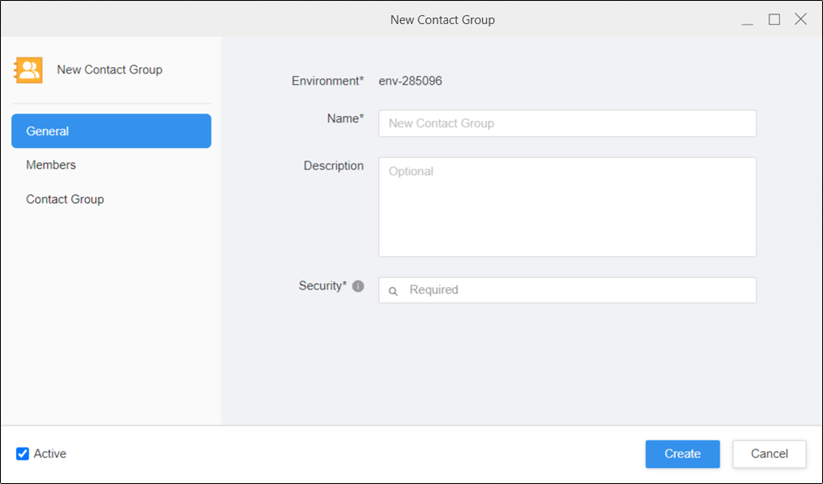
Enter the name and description for the contact group. Security for a contact is defined by the user account which is linked to the contact. The security of the user is applied to the contact for all the projects.
Displays a list of contacts and contact groups that are a member of this contact group. You can add a new contact to the contact group, as well as add or remove existing contacts and contact groups for this contact group. Click Add Member to add a new contact or contact group.
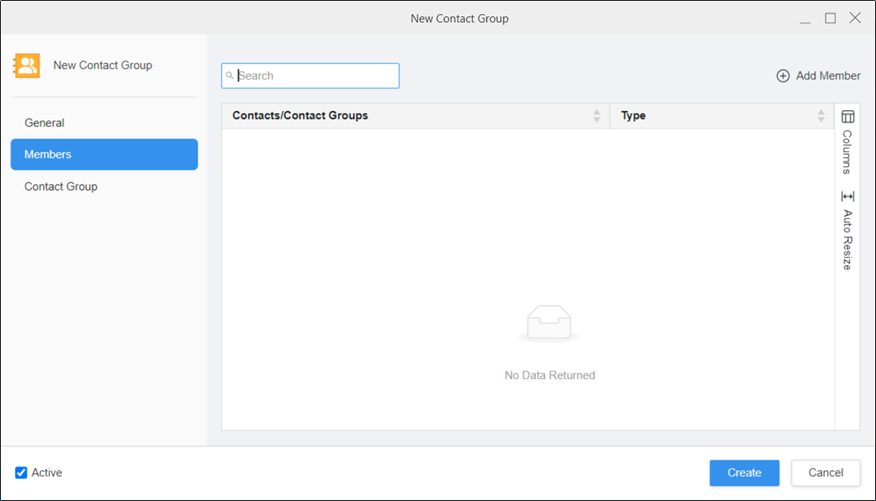
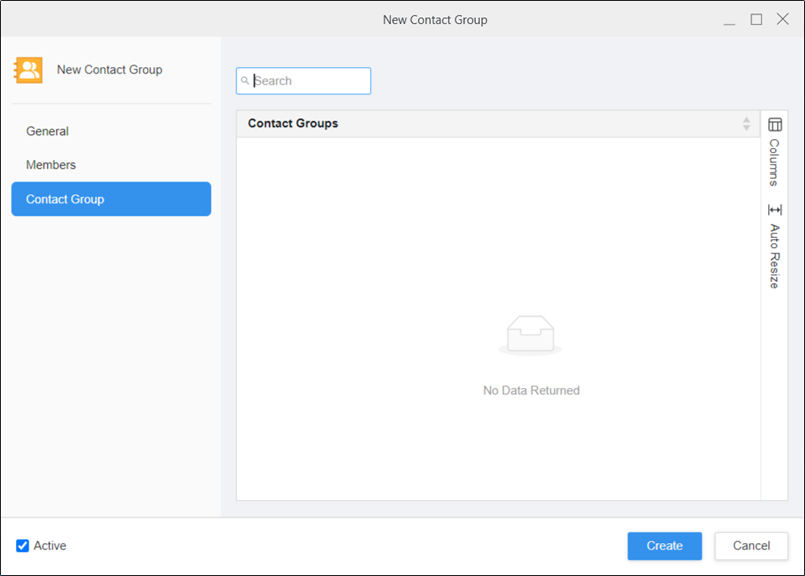
Any contact groups that are created and mapped to this contact group display here.
Edit Contacts and Contact Groups
You can edit, activate/deactivate, copy, and delete contacts and contact groups.
- In the Navigation pane, click Users & Groups.
- Click the Contacts or Contact Groups tab.
-
Right-click a contact or contact group and choose from Edit, Deactivate/Activate, Duplicate, or Delete.
Open the Workstation page.
Additional Information
When extracting the license details, what does Contact mean in audit reports?
In audit reports, Contact refers to a user who has interacted with the system somehow during the audit period. It can be someone who performed one of the following:
-
Received reports or documents via subscription services (like with Narrowcast)
-
Access reports, dashboards, or other content through a subscription or scheduled delivery
-
Engaged with the system somehow (email, mobile, or more)
The Contact label in the license audit report sometimes displays users who are not necessarily logging into the system directly but passively receive Strategy content such as email subscriptions. These users may still be counted in license usage but this depends on the customer license type agreement.